iPhone Screen Time
13 best screen time apps for iPhone, focus, and healthier phone habits

This guide compares a range of screen-time and focus options for iPhone and other platforms.
How to choose a screen time app based on the habit you want to change
Consider matching the tool’s mechanism, such as a pause, scheduled block, or cross-device sync, to the behavior you want to change. A pause may suit habitual social-app opens. A scheduled block may suit a defined work period. A tool that covers several devices may matter if distractions follow you between phone and computer.
- Choose friction for habitual opens. A delay, prompt, or physical checkpoint creates a moment to reconsider.
- Hard-blocking tools are an option for periods when you want to make access less readily available.
- Choose schedules or automation when the same boundary matters at the same time, place, or network.
- Usage tracking can help identify which apps, sites, or periods account for your screen time before you set restrictions.
Decide whether you want to reduce use or stop using particular social apps. The better fit depends on your needs.
The best screen time apps for iPhone
1. Apple Screen Time: best free built-in baseline for basic iPhone limits
Apple Screen Time is the sensible first stop if you want familiar, system-level controls without adding another app. It lets you set daily App Limits, plan Downtime, choose Always Allowed apps, and use different limits on different days. Most importantly, an App Limit behaves differently depending on whether “Block at End of Limit” is enabled: Apple describes that setting as the difference between an alert-like limit and one intended to stop access.
Apple Screen Time requires users to choose and configure limits or schedules; it also provides usage reports and app limits. For help setting it up, read how to turn on Screen Time for a calmer iPhone.
2. Mado: best for turning habitual social-app opens into deliberate 15-minute sessions
When you open a selected app, Mado presents a pause screen where you can close it or enter a limited session. It is a fit for people who want to interrupt habitual opens rather than rely only on analytics or conventional timers; check the current App Store listing for compatibility, session settings, trial terms, and price.
Its limitation is its narrower fit: a fixed session-based approach may not suit someone who needs broad cross-device controls, elaborate automation, or a conventional cumulative-minute limit. Mado is available for iPhone with iOS 17 or later.
3. ScreenZen: best free option for highly configurable friction before opening an app
ScreenZen suits the person who wants to experiment with boundaries rather than accept one philosophy of blocking. You can introduce a wait before an app opens, increase that wait over time, set brief checking windows, and set goals that become blocks. It can also lock its own settings, reducing the temptation to rewrite a rule in the moment.
Its notable strength is range: ScreenZen’s iPhone listing says strict blocks can be triggered by a time range, number of app opens, or amount of Screen Time. The trade-off is complexity. Granular controls are useful, but they can invite endless rule-tuning when a simple boundary would be easier to keep.
4. Opal: best polished productivity suite for hard focus commitments
Opal is for someone seeking a polished focus system rather than only a social media blocker. Its current materials describe app and website blocking, schedules, app limits, waiting-room friction, allowlists, usage reporting, and Deep Focus commitment modes. It also supports iPhone, Android, and Mac, though feature parity can differ by platform.
Opal Pro is listed at $99.99 billed annually ($8.29/month equivalent), $19.99 monthly, or $399 lifetime, while its free plan includes 1 rule. That breadth and cost make it better for people who will actually use a full productivity suite than for someone seeking one small interruption before a habitual open. For a closer comparison of this approach, see this Opal app review and comparison.
5. AppBlock: best for rules that change by time, location, or Wi-Fi network
AppBlock is built for conditional boundaries. It can restrict chosen apps and websites through schedules tied to time, location, or Wi-Fi, with app-open limits, a Quick Block, allowlists, and a Strict Mode intended to make self-editing harder. This is practical if your work boundary belongs at the office, your evening boundary belongs at home, or a particular network reliably signals distraction.
The weakness is that Strict Mode is not an irreversible trap. AppBlock says people unintentionally locked out can contact support for a recovery code. Its current US iPhone purchase list includes $4.99 monthly, $29.99 yearly, and $89.99 lifetime Premium options. It is best for carefully designed routines, not necessarily for a person who wants a minimal interface and one uncomplicated rule.
6. Freedom: best for blocking distractions across iPhone, tablet, and computer
Freedom is the practical choice for a focus boundary that must travel with you. It runs sessions that block selected apps and websites, and its premium offering adds scheduled and recurring sessions, Locked Mode, synchronization, and broader device coverage. On iPhone, it blocks both apps and websites during an active session rather than functioning only as a website tool.
Its weakness is that the offering is oriented around formal focus sessions, which can be more infrastructure than a person needs for a few impulsive app opens. Freedom offers monthly, yearly, and Forever plans; check its current pricing page for current pricing.
7. StayFree: best for understanding usage across phone and browser before imposing a block
StayFree is a useful first step for people who need a clearer picture before they choose stricter controls. It tracks app and website usage, supports limits and scheduled Focus Mode periods, and can pair its iPhone app with Chrome and Firefox extensions for a wider view of browsing and device habits.
StayFree offers cross-platform tracking and blocking, but verify whether its current iOS version can control a specific in-app surface such as Instagram Reels. Read the fuller StayFree review and iPhone alternatives if cross-platform tracking is your main reason for considering it.
8. Screen Time Control - Stay Off: best for earning screen time through positive actions
Screen Time Control - Stay Off takes a different view of digital wellbeing. Alongside daily app limits and scheduled OFF Time, it can grant entertainment time through positive actions such as Apple Health steps and exercise, selected learning apps, or logged focus sessions. That can make the boundary feel more constructive for someone motivated by movement, study, or a visible trade.
Its weakness follows from that flexibility: it is not exclusively a hard-blocking product. Someone who wants zero-exception restrictions may find a rewards model too negotiable. Do not confuse it with the separate app named StayOff, which has a simpler lock-and-schedule model.
9. StayOff: best for simple, chosen-duration app locks
StayOff, whose current App Store listing describes the product as SnappOff, is for people who prefer a direct request: choose apps, lock them for a duration, and get on with something else. It supports one-time and recurring day-and-time schedules and includes built-in analytics. The narrow scope is its appeal.
StayOff emphasizes custom-duration locks, recurring schedules, and analytics rather than a broader rewards model. That simplicity is a limitation for anyone looking for coaching, activity-gated access, or highly configurable friction.
10. Doomscroll: Quit Social Media: best for a narrow social-scrolling reduction goal
Doomscroll: Quit Social Media is positioned specifically around reducing mindless social-media use and building a healthier relationship with the phone. That narrow framing may appeal if work apps and general productivity are not your concern and scrolling is the behavior you want to change.
Its detailed mechanism and current purchase tiers were not exposed in the available listing, so check the full app name and developer before downloading. Doomscroll: Quit Social Media is separate from DoomScroll: Screen Time Limit, which uses daily limits, a shield, and optional activity-based unlocking.
11. DoomScroll: Screen Time Limit: best for a limit with a physical-action checkpoint
DoomScroll: Screen Time Limit combines ordinary limits with a moment of embodied friction. After a limit is reached, its shield can let you walk away, continue by bypassing, or, if configured, complete an action such as walking 30 steps or flipping the phone. It also offers breathing, meditation, and deep-study alternatives at that decision point.
Its per-app daily limit can run from 15 seconds to 30 minutes. Check the App Store purchase screen for current Pro pricing. The central weakness is that it is not a no-exceptions hard lock by default, because the shield includes a bypass choice unless an activity-based unlock has been configured. That may be compassionate for some people and too permissive for others.
12. StopSocial: Quit Socials Now: best for people trying to leave social media rather than manage it
StopSocial is aimed at people who want to quit social media rather than take periodic breaks from it. Its listing describes tools, insights, and support for permanently stopping social-media use and building healthier habits. That makes it conceptually different from a focus mode app built around a two-hour work session.
Its limitation is that the public listing does not clearly disclose the exact technical blocking mechanism. Be cautious with broad “science-based” language too: that is a marketing label in the listing, not independent proof that every product claim or outcome has clinical validation.
13. Foqos: best for people who need a physical ritual to start and end focus time
Foqos changes the question from “can I resist opening this?” to “am I willing to go to the place where I keep my focus tag?” Foqos lets users activate blocks with an NFC tag, QR code, or in-app action; check its current settings for end-block options. Putting a tag on a desk, monitor, or door makes the start of focus time a physical ritual instead of another tap.
It is not fundamentally a time-limit tracker, which is its weakness if daily minutes and detailed usage data are what you need. Foqos lists optional developer tips of $1.99, $4.99, and $9.99 rather than a subscription price.
Screen time apps compared: features, enforcement, and best use case
| App | How it works | Platforms | Price |
|---|---|---|---|
| Apple Screen Time | Built-in limits, Downtime, and optional blocking at the limit | iPhone, iPad, Mac | Included with Apple operating systems |
| Mado | Pause screen and limited intentional-use sessions | iPhone, iOS 17 or later | 7-day trial; $9.99/month or $49.99/year in the US |
| ScreenZen | Opening delays, goals, strict blocks, and locked settings | iPhone, iPad, Mac, Android, Windows | Free and donation-supported |
| Opal | App and website blocking, schedules, and commitment modes | iPhone, Android, Mac | Free tier with 1 rule; Pro plans available |
| AppBlock | Blocks and schedules triggered by time, location, or Wi-Fi | iPhone, iPad, Apple Watch, Android, Mac, web browsers | Free download; Premium options available |
| Freedom | Multi-device app and website focus sessions | iPhone, iPad, Android, Mac, Windows, ChromeOS, Linux, web browsers | Freedom offers monthly, yearly, and Forever plans; check its current pricing page for current pricing. |
| StayFree | Usage tracking, limits, focus periods, and browser extensions | iPhone, iPad, Chrome, Firefox, desktop companion | Free on the current US iPhone listing |
| Screen Time Control - Stay Off | Limits and OFF Time with earned entertainment access | iPhone, iPad | Free download with in-app purchases |
| StayOff | Custom-duration app locks and recurring schedules | iPhone | Free on the current US App Store listing |
| Doomscroll: Quit Social Media | Social-scrolling reduction and digital wellbeing framing | iPhone, iPad | Free download with in-app purchases |
| DoomScroll: Screen Time Limit | Daily limits, bypass option, and optional activity gate | iPhone, iPad | Free tier; Pro plans available |
| StopSocial | Quit-focused tools, insights, and support | iPhone, iPad, Mac with Apple silicon, Apple Vision | Free download with in-app purchases |
| Foqos | NFC, QR, or in-app activation for focus blocks | iPhone; Mac focus sessions are in beta | Free download; optional developer tips |
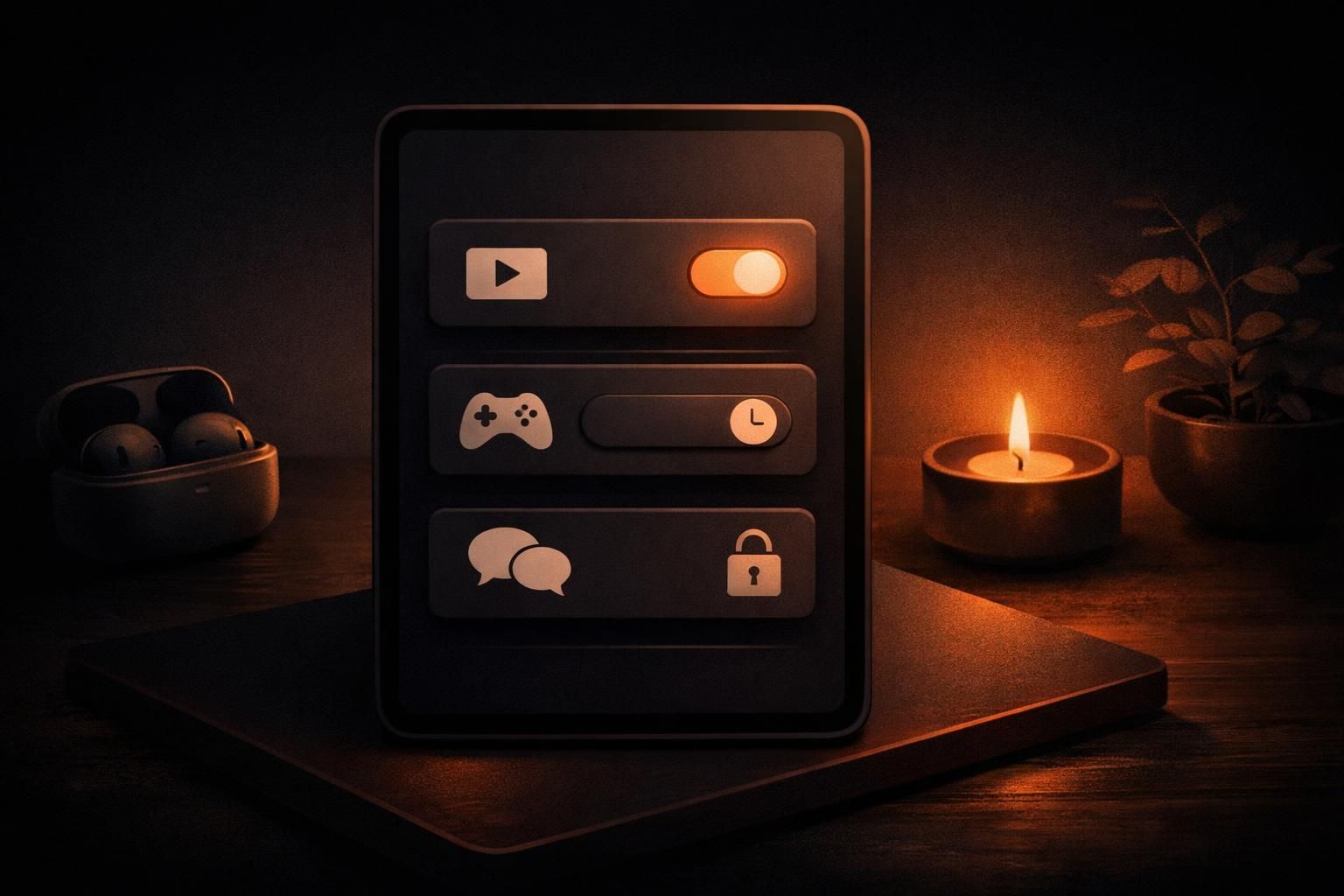
Recommendation: treat the table as a starting point, not a verdict. A broad platform list matters only if you actually need the same boundary outside your phone. Before committing, try one rule for a week and notice whether it reduces the number of negotiations you have with yourself.
What none of these screen time apps solves on its own
In practice, no app can decide what you want your attention to serve. A blocker can interrupt a loop, preserve a work block, or make an evening boundary visible. It cannot fill the gap left by scrolling, resolve a stressful task, or make a phone less tempting if every notification still asks for attention.
Consider pairing a blocking rule with an immediately available offline or lower-distraction alternative.
Important iPhone limitations to test before relying on any blocker
Test the exact boundary you care about before building a routine around it. Try opening a blocked app during a scheduled period. Try the websites you actually use. Check what happens after a limit, after a device restart, and when you need an essential app. If you use a computer too, test whether rules, reporting, and website controls behave the same way there rather than assuming they do.
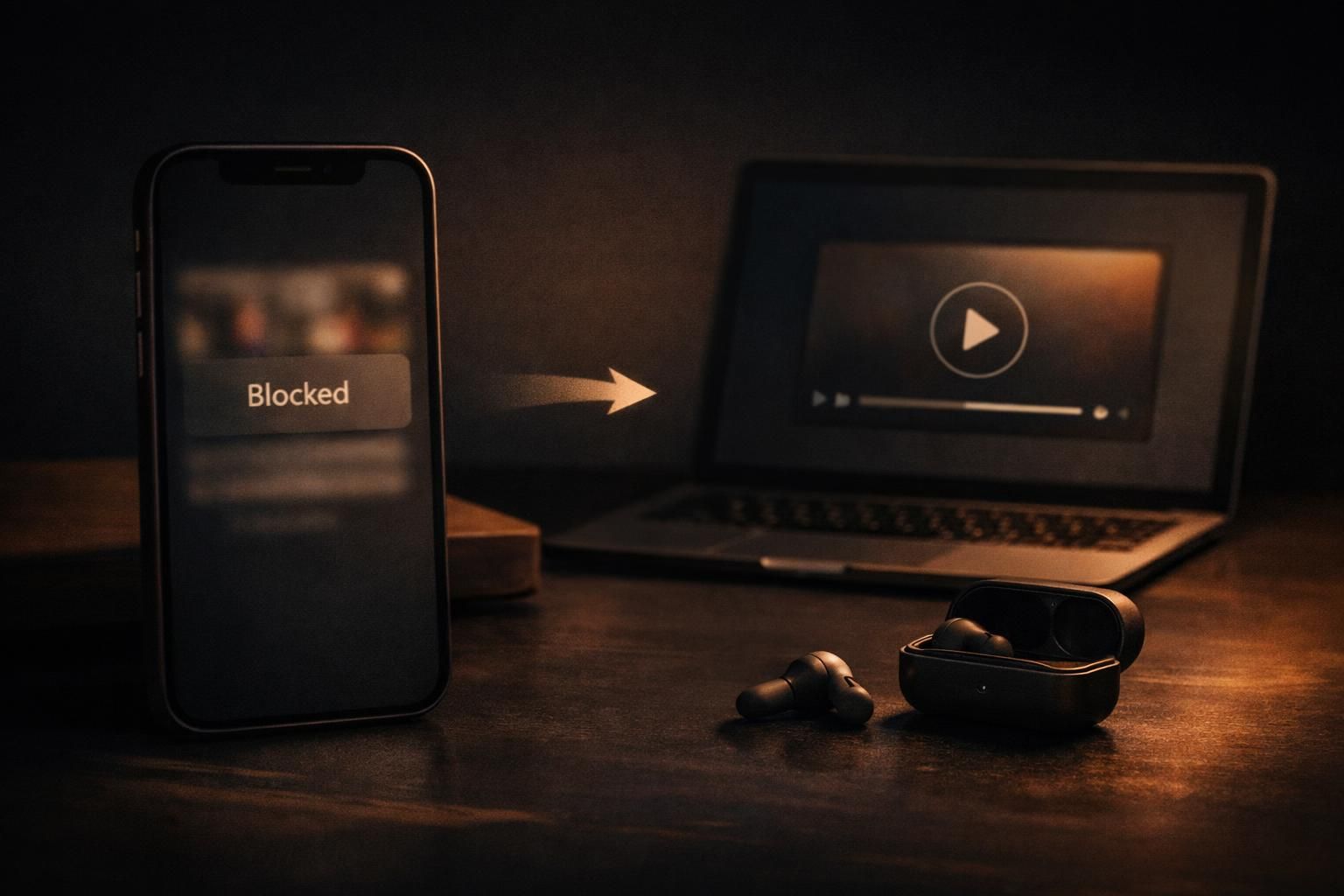
This matters especially for family or shared-device setups, and for any app that promises strictness. A recovery path can be necessary if a rule accidentally blocks something essential. The useful question is not whether a tool is theoretically impossible to bypass. It is whether its setup makes an impulsive exception less likely while still leaving you a safe way back in.
For practical setup ideas, use this guide to setting app time limits without a fight and this explanation of protecting quiet hours with iPhone Downtime.
Which screen time app should you pick?
As a recommendation, pick Apple Screen Time if you want to begin with the controls already on your devices. Pick Mado if a pause before selected apps and limited sessions suit your habit. Pick ScreenZen if you want substantial free configurability. Pick Opal if you want a fuller, polished focus system, or AppBlock if rules need to react to your routine and environment.
Choose Freedom if your focus boundary must cover phone and computer. Choose StayFree if visibility across phone and browser comes first. Choose Foqos if physically starting a block would help more than another on-screen prompt. For students, a small rule that protects study time may be more manageable than an elaborate restriction. These screen-time ideas for students can help you start there.
Compare current blocking mechanisms, bypass options, platforms, and cost before choosing. The right tool should create enough friction to support your intention, without turning ordinary phone use into a daily battle.
FAQ about screen time apps
What is the best screen timer app?
What is the best app to control child screen time?
Is there a fake screen time app?
What app is better than Life360?
For more ideas on choosing an app blocker for iPhone, explore these focus mode apps for blocking distractions or learn how to restrict certain apps on iPhone in a way you can live with.
If social-media use is the specific issue, consider an app limit, a scheduled block, or a session-based tool that still permits planned use.
Sources
- opalapp.com
- apps.apple.com/us/app/screenzen-screen-time-control/id15410272...
- apps.apple.com/us/app/appblock-block-apps-website/id1515753232
- apps.apple.com/us/app/doomscroll-screen-time-limit/id675992889...
- apps.apple.com/us/app/foqos-tap-to-block/id6736793117
- support.apple.com
- StayOff (apps.apple.com)
- Doomscroll: Quit Social Media (apps.apple.com)
- freedom.to
- Opal (apps.apple.com)


