Social media limits
How to block someone on TikTok

TikTok says people you block are not notified, and a block prevents them from viewing your videos or engaging with you through direct messages, comments, follows, or likes. TikTok’s comments and blocking guidance describes those limits.
Use a block when you want a firm boundary with one account. Open that account’s profile, choose Share, and confirm Block. For harassment, threats, impersonation, or other rule-breaking conduct, submit a report as well so TikTok can review it.
Step 1: Choose the right control
Block an account when you do not want either account to find the other in search, view the other’s posts, or exchange direct messages. TikTok’s blocking guidance also says the accounts cannot interact through posts in the usual ways.
Use a lighter control when the problem is narrower. To stop seeing a friend’s posts without cutting off their access to yours, open their profile, tap Share, then tap “Mute their posts.” Their posts stop appearing in your feeds unless you visit their profile, and TikTok does not notify them. TikTok’s muting instructions set out that route.
If you only want to remove someone who follows you, go to Profile, Followers, More actions, then Remove this follower. TikTok’s follower-removal guide documents that separate control.
For unwanted comments generally, set an audience instead: Profile, Menu ☰, Settings and privacy, Privacy, Comments, then Allow comments from. TikTok offers Everyone for public accounts, Followers for private accounts, and Friends, meaning followers you follow back. TikTok’s comment settings explain those choices.
Do not treat blocking as a documented way to remove an existing follow relationship. Use Remove this follower when that is the action you need.

Step 2: Block the account
Start on the specific person’s TikTok profile. This control is inside TikTok, not an iPhone setting for blocking the TikTok app.
- At the top of the person’s profile, tap Share.
- Tap Block at the bottom of the menu.
- Tap Block again to confirm.
TikTok’s blocking instructions give the same profile sequence: Share, Block, then Block. After confirmation, the account is blocked.
Step 3: Know what changes
The person does not receive a notification that you blocked them. TikTok says the block prevents them from viewing your videos and engaging with you by direct message, comment, follow, or like.
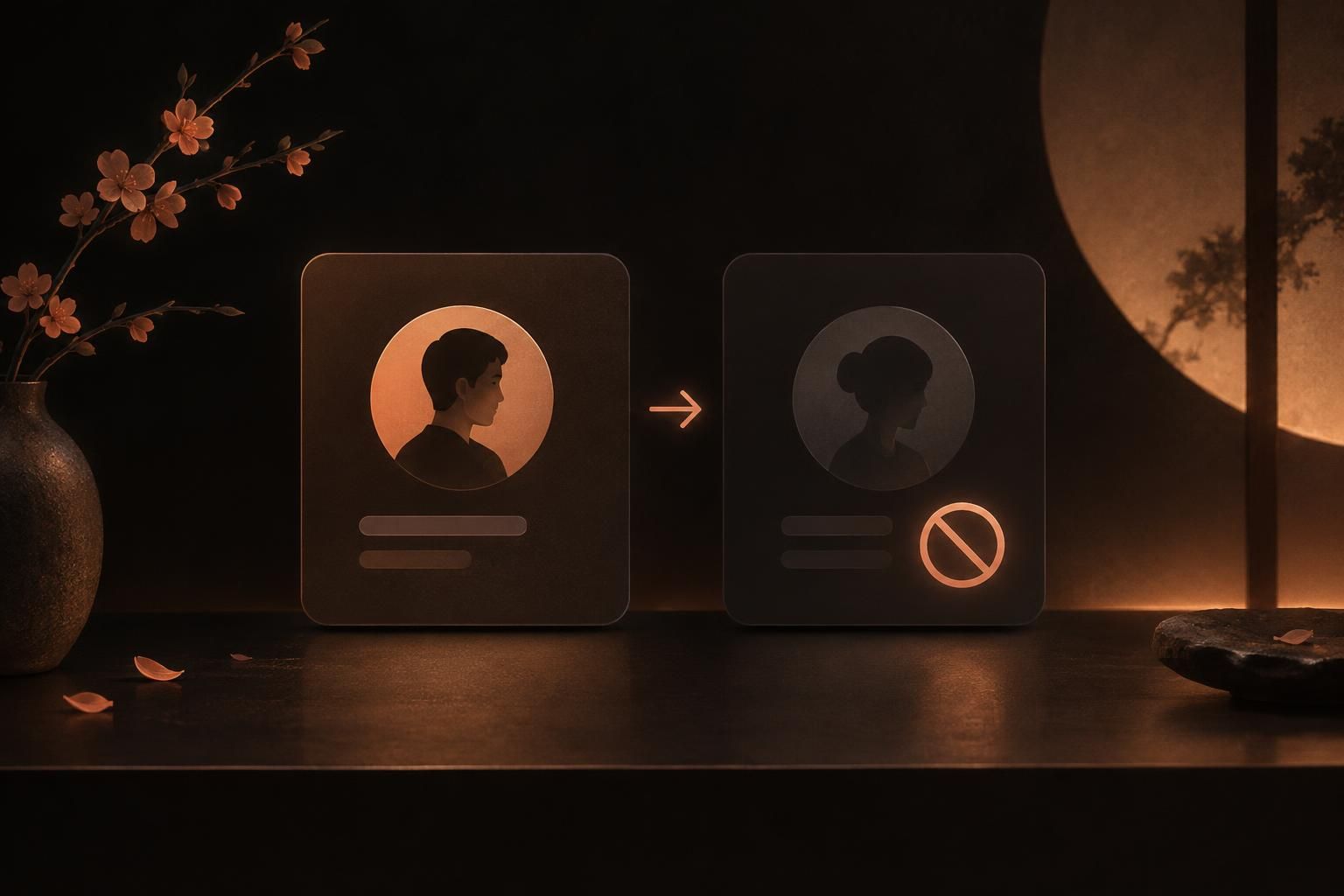
The boundary works both ways in TikTok’s documented blocking rules: the two accounts cannot view each other’s posts, find each other’s profiles in search, or exchange direct messages. This is why blocking fits unwanted contact rather than a simple feed preference.
A block changes access between the accounts immediately. It does not supply a documented promise that any existing follow relationship is automatically removed in both directions.
Step 4: Review or unblock accounts
To see the accounts you have blocked, go to Profile, Menu ☰, Settings and privacy, Privacy, then Blocked accounts. Find the account in the list and tap Unblock beside it. TikTok’s blocked-list instructions use that same path.
Use this list when you need to reverse a block. Unblocking restores the account’s ability to find and interact with you under TikTok’s normal settings, so only do it when you are ready to remove that boundary.
Step 5: Report serious abuse
Block unwanted access, then report conduct that violates TikTok’s rules. Keep relevant screenshots, usernames, message text, dates, and links before reporting, especially for harassment, threats, impersonation, or repeat accounts. TikTok advises reporting each account that violates its Community Guidelines, and it has a dedicated route for impersonation accounts.

To report an account, open its profile, tap Share, tap Report, then tap Report account, select a reason, then tap Submit. TikTok’s account-report instructions set out that sequence.
Report the specific item as well when that is where the abuse appears. For a video, open it and tap Share, or press and hold it, then tap Report, choose a reason and any requested subtopic, and tap Submit. For a comment, open the post’s comments, press and hold the comment, tap Report, choose a reason, and submit it.
For a threatening or abusive direct message, go to Inbox, open the chat, tap More options … at the top, choose Report, select a reason, then choose Report and block. You can also press and hold an individual message to report that message. TikTok’s direct-message reporting guide documents both options.
For a pile-on in one post’s comments, use Filters at the top of the comments, or press and hold a comment and tap Manage multiple comments. TikTok lets you select up to 100 comments for a bulk action and provides a bulk account-blocking flow from comment moderation. TikTok’s comment moderation guidance describes those controls.
Blocking creates an immediate boundary without notifying the other account. A report serves a different purpose: it documents conduct that TikTok needs to review.
Sources
- support.tiktok.com/en/safety-hc/account-and-user-safety/blocking-a...
- support.tiktok.com/en/using-tiktok/messaging-and-notifications/com...
- support.tiktok.com/en/safety-hc/report-a-problem/report-an-account
- support.tiktok.com/en/safety-hc/report-a-problem/report-a-direct-m...
- support.tiktok.com/en/using-tiktok/followers-and-following/where-t...