App blockers and alternatives
Bloom app blocker alternatives: which friction tool fits your habits?

Pick ScreenZen if you want a free, highly configurable blocker that makes habitual opens harder. Choose Foqos if a QR code or NFC tap creates the physical interruption you need. Pick Mado if you use an iPhone and want each social-app visit to be a deliberate, finite 15-minute session rather than an open-ended exception.
What makes Bloom different from a normal app blocker?
A normal app blocker changes access through a schedule, time limit, app-open limit, or a focus session. A physical-card blocker aims to change the moment before access as well: instead of adjusting a setting on the same phone you are trying to put down, you have to retrieve or use something outside that loop.
That distinction is useful only if the physical step is genuinely inconvenient at the point where you usually scroll. A card left beside the phone is unlikely to interrupt much. A card kept by the door, in another room, or in a bag can turn an automatic override into a choice with enough pause to notice it.
Product-specific Bloom Card specifications are not assessed in this comparison. Before buying a physical-card blocker, verify its current supported devices, blocking controls, emergency access route, and payment terms directly with the provider.
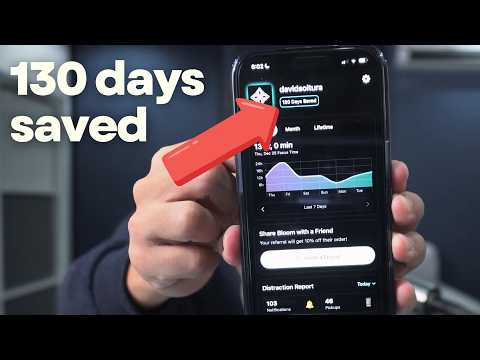
Check these practical Bloom Card details before you buy
Before choosing any physical-card blocker, establish what happens when the card is unavailable, whether the system blocks apps, websites, or both, and whether schedules work without the card. Also check whether one accessory can serve several devices, how access is restored in an urgent situation, and whether removing the companion app defeats the setup.
These questions matter more than a promise of stronger willpower. The best setup is the one whose escape route is difficult at the exact moment you normally rationalize “just a minute.” If deletion resistance is your concern, read this guide to choosing an app blocker that cannot be deleted on iPhone.
Bloom app blocker alternatives compared
| App | Best for | Platforms | Pricing |
|---|---|---|---|
| Bloom Card | Check current product details directly with the provider | Not assessed | Not assessed |
| Foqos | NFC or QR-based physical friction | iPhone, Mac beta focus-session blocking | Publisher says free and open source, no subscription |
| ScreenZen | Free escalating delays and detailed limits | iPhone, iPad, Mac, Android, Windows | Free, with optional support purchases |
| Mado | Finite intentional sessions on iPhone | iPhone, iOS 17+ | 7-day free trial, then $9.99/month or $49.99/year |
| Apple Screen Time | Built-in household controls and reporting | iPhone, iPad, Mac | Included with Apple operating systems |
| Opal | Broader scheduled focus system | iPhone, Android, Mac | Free tier, paid Pro upgrades |
| Brick | Not assessed in this comparison | Not assessed | Not assessed |

1. Bloom Card: best for people who need a physical cue before changing their app access
Bloom Card belongs in the conversation if a tangible ritual is the intervention you are seeking. A physical card can move the decision to change access away from a familiar on-screen tap. For someone who changes settings impulsively, that extra step can be more meaningful than another countdown.
The key decision criterion is whether you will place the card far enough away to make changing access a real interruption. If you keep it within reach, the NFC step becomes another quick gesture rather than a boundary. Confirm the product’s current compatibility and controls before treating it as a fit for your devices.
Do not buy a physical blocker on the assumption that it permanently solves access. First decide whether its fallback route fits the kind of boundary you need. Readers weighing physical approaches can also use this comparison of Brick, Mado, Screen Time, one sec, and Opal to clarify the different kinds of friction involved.
2. Foqos: best for a flexible NFC or QR unlock ritual without proprietary hardware
Use Foqos if you want the physical logic associated with a card-based blocker but prefer to choose the object and location yourself. It lets you create profiles for chosen apps or websites and activate them manually, on a timer, by scanning a QR code, or by tapping an NFC tag. The practical move is to keep the tag or QR code away from where you tend to scroll.
That flexibility is its strength. One person can put a QR code near a desk for work focus, while another can place an NFC tag by the front door to make a social-media reset more deliberate. Foqos supports standard NTAG213 NFC tags and QR codes, so its model does not require proprietary hardware.
Its weakness is that the ritual needs your own setup and discipline. If the tag stays beside the phone, the physical barrier shrinks to another easy gesture. Its publisher describes Foqos as free, open source, and subscription-free, though the App Store is labelled “Free · In-App Purchases,” so do not make a categorical no-purchases assumption from the listing alone.
3. ScreenZen: best free option for escalating friction and limits on app opens
ScreenZen is the sensible starting point for most people who want to reduce phone usage without paying for a subscription. It can make you wait before an app opens, increase that wait over time, allow short timed checks, set daily goals, and strictly block apps by time range, number of opens, or Screen Time amount. It also includes schedules, streaks, interventions such as breathing, and locks for its own settings.
Its advantage over a simple timer is precision. If your pattern is twenty quick Instagram checks, an open limit targets that behavior directly. If the problem arrives late at night, a schedule is more relevant than a generic daily quota. Escalating waits are particularly useful for habitual opens because the consequence appears before the feed does.
The tradeoff is complexity. A tool with many controls asks you to decide which controls to use, then maintain them. Start with one distracting app and one rule rather than configuring every possible restriction. ScreenZen’s core blocker is free, with optional support purchases.
4. Mado: best for an intentional, finite 15-minute scrolling session on iPhone
Pick Mado when your problem is not simply time spent on an app. It is opening it before you have decided to. Mado places a calm pause screen before selected apps. You can close the app or use a 15-minute session, with fixed daily session caps through selectable rhythms.
This makes Mado a distinct screen time alternative for the person who wants room for intentional scrolling but does not want an endless chain of overrides. Its three daily rhythms provide exactly 3, 2, or 1 sessions per day, and each session is 15 minutes. Deep Focus blocks run from 15 minutes to 4 hours, with an optional lock that prevents ending a focus block early.
Its limitation is clear: Mado is for iPhone on iOS 17 or later, not a cross-platform system. It also is not an all-day blanket blocker by default. Its normal mode deliberately permits a finite session, while Deep Focus and scheduled protection are the modes for fully shutting selected apps for a period. The US site lists a 7-day free trial, then $9.99/month or $49.99/year; App Store pricing may vary by region.
Create a calmer pause before social apps
Mado turns each selected app open into a choice between closing it and spending one intentional 15-minute session.
5. Apple Screen Time: best free baseline for iPhone and iPad households
Apple Screen Time is the right baseline if you want built-in usage reports and family controls without installing another app. It can also aggregate usage across an iPhone and iPad signed in to the same Apple Account. For families, its passcode and “Block at End of Limit” configuration can make limits firmer.
For self-management, its weakness is familiar: a self-set App Limit can present an Ignore Limit prompt. That does not make Screen Time useless. It makes it better for awareness, household management, and a first boundary than for someone who already knows they override limits while distracted.
Apple says redesigned Screen Time and Time Allowances are available with iOS 27, iPadOS 27, and macOS 27. Time Allowances can cover categories including Social Media, Entertainment, and Games. It is included with Apple operating systems. For a step-by-step look at stronger long-term boundaries, see this practical guide to permanently blocking an app on iPhone.
6. Opal: best for scheduled focus blocks and a broader focus system
Choose Opal when you want a fuller focus system across iPhone, Android, and Mac, rather than a single-purpose doomscrolling app. Its Rules can block selected apps and websites by schedule, usage time limit, or open limit. The product also includes focus timers and soundscapes, scores and history, rewards, leaderboards, and team offerings. Deep Focus is its non-cancelable protection level.
This breadth suits a person whose needs change across workdays, weekends, and devices. Set schedules for recurring work blocks, open limits for reflexive checking, and stronger focus protection when you cannot afford an exception. It is more expansive than a simple social media blocker.
The weakness is that its paid plan is a substantial commitment if all you need is a small interruption before one app. The free plan includes 1 Rule. Official US pricing lists Pro at $99.99 billed annually ($8.29/month), $19.99/month, or $399 lifetime. For a closer feature-by-feature assessment, see our Opal comparison with Apple Screen Time and Mado.
7. Brick: best for readers specifically deciding between the two physical-card approaches
Brick is relevant if your decision is specifically between two physical approaches to changing access. Product-specific Brick specifications are not assessed in this comparison, so verify its current workflow, compatibility, controls, and payment terms directly with the provider before choosing.
The practical question is whether a physical cue belongs in your setup at all. Compare the current access-changing process and emergency route of each product, then choose the one that fits your real bypass behavior rather than treating either as a permanent cure for access.
Choose a physical approach only if moving the control away from your phone addresses your real bypass behavior. If you bypass by changing settings, a distant NFC tag, card, or QR code may help. If you bypass because the app is available during unplanned gaps, a scheduled blocker or finite session model is often the closer match. For readers focused on that category, this guide to Brick alternatives for calmer screen time is the appropriate next comparison.
Bloom and its alternatives at a glance
The comparison separates into three approaches. Physical friction changes where you make the access decision. Configurable blockers change the rules around access. Intentional-session tools change the terms of access by making a visit finite. None is universally stricter because each addresses a different way people override themselves.
- Choose physical friction when retrieving an object is the interruption you will respect.
- Choose escalating waits or open limits when repetitive checking is the pattern.
- Choose fixed sessions when you want intentional access without unlimited exceptions.
- Choose scheduled focus blocks when the same protected periods recur each week.
How to choose: match the blocker to the way you bypass it
If you tap “ignore” without reading it, do not start with another ordinary time limit. Use a setting lock, stricter focus mode, or physical cue. If you lose time through frequent short checks, use an app-open limit, a wait screen, or Mado’s fixed sessions. If your problem is predictable, such as evenings or study hours, use a schedule.

Choose one behavior to change first. Blocking every entertaining app can produce a dramatic setup and an equally dramatic rebound. A narrower rule, such as protecting the first hour after waking or limiting a single feed, gives you a clearer signal about whether the tool fits.
For more options focused specifically on compulsive feeds, compare these social media blocker apps for iPhone.
What none of these app blockers solves on its own
An app blocker does not decide what should replace the scroll. It creates a pause, boundary, or delay. The next action still matters. Before turning on a block, decide what you will do in the first few minutes after you close the app: stand up, make tea, begin the next task, message a friend, or simply leave the phone in another room.
It also cannot make a vague goal workable. “Use my phone less” gives you no rule to follow at 10:30 p.m. “No social apps during the first hour of work” does. Use the blocker to support a specific boundary, then review whether the boundary is improving your attention rather than merely generating a longer streak.
Frequently asked questions about Bloom app blocker
Is the Bloom app blocker good?
What happened to Bloom after Shark Tank?
What are the differences between Bloom and Brick app blockers?
Is Bloom a trustworthy app?

Which Bloom app blocker alternative should you pick?
Start with ScreenZen if you want a free blocker that can become stricter as your habits demand. Pick Foqos if physical distance is the missing ingredient and you want to use standard NFC tags or QR codes. Choose Apple Screen Time for built-in reporting and household controls, and Opal for a broad, cross-platform focus system.
Choose Mado if the useful boundary is not “never open this,” but “open it intentionally, for one finite session.” That approach is especially suited to iPhone users who repeatedly open social apps by habit and want a calmer attention management app without treating every visit as a failure.


