Mado Journal
How to make your phone boring without making it useless

A boring phone is not a broken phone. It still handles messages, maps, tickets, calls, banking, and the small tasks that matter. The aim is simpler: remove the cues, shortcuts, and endless options that turn a moment of waiting into automatic scrolling.
Step 1: Define the few jobs your iPhone is allowed to do
Before changing settings, decide what your phone is for. Write a short list: communication, directions, calendar, camera, authentication, music, and emergencies might make the cut. The list is not a moral rule. It is a design brief for your device.
Then notice which apps do not support one of those jobs, or which ones do so only occasionally while consuming a great deal of spare attention. You do not need to delete every enjoyable app. You are deciding which activities deserve to be easy and which should require a little intention.
Step 2: Identify the apps, times, and feelings that start your autopilot scrolling
Phone use is often tied to a situation rather than an app alone. You may open a social feed after sending a difficult email, while waiting for the kettle, late at night, or immediately after waking. For several days, make a light note of three things: what you opened, when you opened it, and what happened just before.
Usage history can reveal patterns, but the number is only the start. Use this guide to check iPhone usage history and read it well if you need help turning the record into a useful observation. Look for repeat openings and predictable contexts, not a reason to judge yourself.
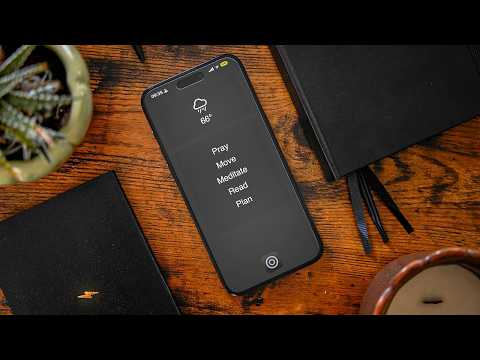
Step 3: Remove high-reward apps from your Home Screen and make the first screen functional
Your first Home Screen should help you do practical things and then put the phone down. Keep only utilities you genuinely reach for: phone, messages, maps, calendar, wallet, camera, or another small set that fits your life. Move social, video, shopping, news, and games off the first page. Better still, remove them from the Home Screen entirely and leave them in the App Library or a plainly named folder.
This is not security through obscurity. Search will still find the apps. That extra search is useful because it interrupts muscle memory. If you open an app only after typing its name, you have a chance to ask whether you actually want it.
Step 4: Turn off the cues that keep asking for your attention
Notifications are invitations with no regard for what you were doing before they arrived. Turn off alerts for feeds, recommendations, promotions, reactions, and any app that does not need to reach you promptly. Keep direct communication, time-sensitive travel updates, security notices, or other alerts that serve a real purpose.
Also remove notification badges from apps that pull you in through an unfinished-count feeling. A blank Home Screen is easier to leave alone than one covered in red numbers. Check alerts once after a few days. If you miss something important, add back only that specific notification type rather than restoring every interruption.
Step 5: Make the display less rewarding to look at
Reduce the visual pull of the device. Choose a quiet wallpaper without faces, bright artwork, or visual clutter. Keep widgets sparse and practical. Consider a simpler app layout and avoid a lock screen built around headlines, scores, or other fresh material that creates another reason to pick up the phone.
You can also test a less saturated display setting if color is part of the draw for you. Treat it as an experiment, not a permanent vow. The useful question is whether the screen becomes less likely to hold you after you have finished the task that brought you there.
Step 6: Remove or restrict the features that turn a useful phone into an entertainment device
A phone becomes hard to leave when every idle minute offers a feed, a clip, a game, a store, and a browser tab. Delete the apps you rarely value after using them. For others, sign out, remove saved passwords, or use the website rather than keeping the app within thumb reach. Friction works best when it is modest but repeatable.
If social media is useful for work, a group, or a particular person, narrow access instead of treating it as all or nothing. Keep the channel that serves the purpose and remove the ones that mainly produce wandering. These social media time-limit ideas can help preserve connection without making every spare minute available to a feed.
Step 7: Use Apple Screen Time for basic time- and schedule-based boundaries
Apple Screen Time is a sensible first layer because it is built into device settings. Use it to create a boundary around a time of day, a category, or selected apps. Decide in advance what matters most: a quieter morning, an uninterrupted work block, or a screen-free wind-down.
Be precise about the boundary you want. Apple says Screen Time Schedules and Time Allowances require iOS 27, iPadOS 27, macOS 27, watchOS 27, or visionOS 27 or later on all participating Apple devices. Self-set limits can also be easy to wave through if you have not configured a real blocking boundary. If a limit keeps failing in practice, review why iPhone Screen Time limits stop working before assuming you lack willpower.
Step 8: Add a deliberate pause when your problem is opening social apps without thinking
A timer helps after you have started. But if the real pattern is opening an app before you have made a decision, put the intervention at the door. Mado is an iPhone screen-time app built for that moment. Choose distracting apps or categories, and opening one presents a calm choice: close it or use one fixed 15-minute session from your daily allowance.
Its three daily rhythms provide exactly 3, 2, or 1 sessions per day. Once those sessions are used, the selected apps stay paused until the next day. That makes Mado a useful screen time alternative for someone who dislikes endlessly extending a conventional timer, but does not want every app permanently unavailable. It also offers scheduled or always-on protection and separate Deep Focus blocks from 15 minutes to 4 hours.
This approach suits habitual checking and doomscrolling especially well. It is less suited to someone who needs detailed cross-device reporting or a large set of highly specific automation triggers. For a broader view of the category, see these iOS app blockers for a calmer phone.
Step 9: Match the friction to the loophole you actually use
Do not add the strictest possible system by default. Match the tool to the escape route. If you repeatedly dismiss timers, use a blocker with a stronger change process. If you move from phone to laptop, choose a tool designed to cover more than one device. If the problem is a particular place, a physical trigger may be more meaningful than another schedule.
- Name the loophole: bypassing a limit, reinstalling an app, opening a browser, or switching devices.
- Add one matching layer of friction.
- Keep an essential route available for maps, messages, work, or safety.
- Test whether the boundary changes behavior before adding another layer.
For example, ScreenZen says its blocker is completely free, donation-supported, and available across iOS, macOS, Windows, and Android. AppBlock offers profiles triggered by time, day, location, or connected Wi-Fi, while its Strict Mode can add a cooldown or third-party approval. Freedom is designed for synchronized blocking sessions across signed-in devices. Different tools solve different forms of drift.
If you are comparing options, start with the behavior you want to interrupt rather than an impressive feature list. This overview of time management apps for focus can help distinguish tracking, scheduled blocks, deliberate pauses, and deeper focus tools.
Step 10: Replace the scroll with a boring-phone default you can do in under two minutes
Removing an easy distraction leaves a small gap. Fill it with something that is available immediately and does not create another feed. The replacement should be low effort enough for the exact moments when you would otherwise scroll.
- Read one saved article or a page of an ebook.
- Write one line in a note: what you need to do next.
- Stand up, refill water, or look out of a window.
- Send the message you meant to send, then put the phone down.
- Open maps or your calendar only if the next action truly needs it.
For students, the replacement might be opening the assignment, reviewing one flashcard, or packing a bag for the next class. A calmer setup does not require treating your iPhone as an enemy. These practical ideas for reducing screen time as a student keep the focus on a workable routine.
Step 11: Make the setup stricter only after you test it for a week
Live with your first version for a week. Ask a few quiet questions: Did you still reach for the phone without a reason? Which safeguard did you ignore? What useful task became unnecessarily difficult? Keep what worked, remove what created needless friction, and strengthen only the boundary that repeatedly failed.
A good boring-phone setup is not the most restrictive one. It is the one you can keep using without resentment, while leaving more room for work, rest, people, and the things you meant to do. If you want a gentler framework for adjusting limits, read how to limit screen time without hostility.
FAQ: Making an iPhone less interesting
How do I make an iPhone boring?
How do I make an iPhone boring?
How can I make my phone less interesting without deleting everything?
How can I make my phone a dumb phone while keeping maps and messages?
Why is Gen Z buying dumb phones?
How can I make my phone less interesting without deleting everything?
You do not have to delete every distracting app. Move them off the Home Screen, turn off their alerts, make access require a search or sign-in, and set a boundary around the times you tend to drift. The point is to make casual use less automatic while preserving intentional use.
How can I make my phone a dumb phone while keeping maps and messages?
Keep communication and practical utilities easy to find, then remove entertainment apps from the default path. A functional first screen with messages, maps, calendar, wallet, and camera can make an iPhone feel much simpler without removing the services you rely on.
Why is Gen Z buying dumb phones?
Some people are drawn to simpler devices because they want fewer cues, less scrolling, or a more deliberate relationship with technology. You can test the same principle on an iPhone first by reducing easy entertainment access and keeping only the useful defaults close at hand.


