App blockers and alternatives
How to block porn on iPhone with filters, boundaries, and a realistic plan

To block porn on iPhone, start with Apple Screen Time’s web controls. Then decide whether you also need protection from easy overrides, a broader network filter, or help changing the app habits that tend to lead you back to unwanted browsing.
Contents
- Choose the right kind of protection
- Set up Apple’s adult website restriction
- Reduce overrides and test the setup
- Add support for app habits and urges
Start with the right goal: adult-site filtering, app restrictions, or accountability
These are related goals, but they need different tools. Adult-site filtering restricts web pages. App restrictions limit access to specific apps, such as browsers, social media, or private messaging apps. Accountability means making a change harder to undo alone, often by placing a passcode or device setting under someone else’s control.
Use adult-site filtering if the main concern is web access. Add app restrictions if certain apps reliably become the route into browsing. Choose accountability when you know that, in a difficult moment, you are likely to change the settings yourself. A filter is a boundary, not a judgement about why you need one.
Use Apple Screen Time to limit adult websites
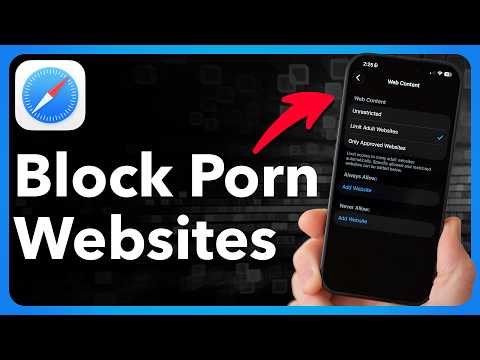
Apple’s built-in setting is the direct place to begin. The path is Screen Time > Content & Privacy Restrictions > App Store, Media, Web, & Games > Web Content > Limit Adult Websites. Turn on Content & Privacy Restrictions first if it is not already enabled, then select Limit Adult Websites.
This is the sensible default for an adult who wants a practical web boundary without reducing the phone to a very small approved list. It is also useful as one layer in a wider setup. Do not treat it as a promise that every inappropriate page will always be identified correctly.
Add specific websites to the Never Allow list
Under Web Content, add known URLs to Never Allow. This is valuable for sites that matter to your own pattern, whether they are explicit sites, image boards, forums, or search pages that repeatedly pull you into material you do not want to see.
Keep the list practical. Add the addresses you have actually used rather than trying to build an endless catalogue. The goal is to remove familiar routes, then put your effort into the moments and routines that lead to opening them.
Use Allowed Websites Only when the iPhone belongs to a child
For a child’s iPhone, Allowed Websites Only is the stricter choice. This mode permits only approved websites, and a parent or guardian can add or later adjust sites.
Use this setting for a child rather than as a casual self-improvement experiment. An adult trying to reduce porn use will usually find Limit Adult Websites, a protected passcode, and a plan for urges more sustainable than locking down every ordinary page.
Protect the Screen Time settings from easy overrides
A boundary works only while it stays in place. Set a Screen Time passcode and, if self-bypass is the problem, ask a trusted person to choose and hold it. Be clear about the agreement first: what is protected, when the person can help, and whether emergency access has a separate plan.

This matters because Screen Time limits are designed to allow requests for more time in family settings. Apple documents Screen Time requests that, after a child reaches a Downtime or App Limits threshold, an approver can grant more time with the Screen Time passcode. If you are setting a personal boundary, do not leave the one key to override it available in the same impulsive moment.
Close the most common bypass routes
Think through access paths before declaring the setup finished. If the goal is less explicit browsing, it is not enough to block one site in one browser while leaving other routes untouched. Make a short inventory of the apps, browser shortcuts, and routines you use when you are tired, alone, bored, or avoiding a task.
Check browsers, private browsing, VPNs, and alternate network routes
Check every browser installed on the iPhone, including browsers you rarely use. Review private browsing, VPN or profile settings, and whether switching between home Wi-Fi and mobile data changes what is accessible. The aim is not technical perfection. It is to remove the simple detours you already know you take.
If another person manages the passcode, agree before setup on how new browsers, VPNs, and configuration changes will be handled. A clear agreement is less brittle than trying to invent a rule after an urge has already arrived. For more detail, read this guide to blocking websites without easy workarounds.
Add iPhone protections beyond websites
Website filtering solves web access. It does not automatically change what happens in social feeds, video apps, search apps, or late-night scrolling. If those apps are part of the pattern, give them their own boundary through Screen Time limits, Downtime, or a dedicated app blocker for iPhone.
Mado is useful here as an attention management app, not as a porn filter. It places a pause before selected apps open. You either close the app or use one fixed 15-minute session from a daily cap. Once the daily session budget is used, selected apps remain paused until the next day. That makes it a good screen time alternative for someone whose route into unwanted browsing starts with habitual social scrolling.
Use Mado alongside Apple’s Web Content restriction, not instead of it. Its Deep Focus blocks can run from 15 minutes to 4 hours, with an optional lock that prevents ending a session early. Scheduled protection windows are useful for the specific times you want the phone to feel quieter, such as the first hour after waking or the last hour before bed.
Create a pause before distracting apps
Use a fixed daily session budget to make social scrolling a deliberate choice rather than an automatic reflex.
Use a DNS, router, or filtering service when you need broader network coverage
A network-level filtering approach is worth exploring when the boundary needs to cover more than one device, or when a household needs a shared rule. It can complement iPhone settings, but it should not replace them. Devices leave home networks, and an iPhone may use mobile data as well as Wi-Fi.
Before choosing this route, decide exactly which devices and networks need coverage, who administers the account or router, and what happens when a site is wrongly blocked. The more people affected, the more important it is to have a calm process for reviewing exceptions.
When a third-party blocker is worth considering
Choose a third-party blocker only when Apple’s built-in controls do not meet your needs, for example, if you need coverage across non-Apple devices, a particular strict-mode workflow, or explicit adult-content blocking within the tool itself. Apple Screen Time can share limits and schedules across an iPhone, iPad, and Mac when Share Across Devices is enabled, and iPhone can lock selected apps with Face ID, Touch ID, or a passcode.

Features and adult-content classification vary by third-party blocker, so check its documentation before choosing one.
| App | Best for | Platforms | Pricing |
|---|---|---|---|
| Apple Screen Time | Built-in iPhone adult-site restrictions | iPhone, iPad, Mac, Apple Watch | Included with Apple operating systems |
| AppBlock | App and website blocks, plus Premium adult-content blocking | iPhone, iPad, Apple Watch, Android, Chrome, Edge, Brave | Free tier and Premium |
| ScreenZen | A free blocker across several device types | iPhone, Android, macOS, Windows | Free, donation-supported |
| Freedom | Synchronized app and website blocks across devices | iPhone, iPad, Android, Mac, Windows, Chromebook | Free tier and Premium |
| Mado | Reducing habitual app opening with a pause and daily sessions | iPhone | 7-day free trial, then subscription |
AppBlock explicitly lists adult-content blocking as a Premium feature. Its free iOS tier limits Quick Block to 4 hours and Strict Mode to 12 hours, while Premium is listed at $4.99/month, $29.99/year, or $89.99 lifetime. Pick it when you want app, website, schedule, and strict-mode controls in one tool.
ScreenZen says it is completely free, donation-supported, and available on iOS, macOS, Windows, and Android. Use it when cost and broad platform support are the priorities. Freedom uses Screen Time-based blocking for apps on iOS and VPN or profile-based blocking for websites, which is useful context if you need one account to coordinate blocks across devices.
If you are comparing stricter app boundaries, this overview of app blockers for different boundaries is a useful next step. If multi-device focus is the priority, see the Freedom app comparison.
Match the setup to the habit you are trying to change
Use Apple’s adult-site restriction and a protected passcode if direct web browsing is the issue. Add an app blocker if a particular browser, social app, or video feed is the usual starting point. Use a cross-device tool if the behavior moves between phone and computer. These are different problems, so they deserve different boundaries.
For repeated, automatic app opening, a pause is often more useful than a harsh countdown. Mado’s calm choice point and fixed 15-minute sessions suit people who want to reduce phone usage without treating every use as a failure. Its insights, streaks, milestones, and progress garden are there to show the pattern over time, not to shame you for having one.
Test your block before you rely on it
Test while you are calm. Open each browser you use, try a blocked URL, check a site you need for ordinary life, and verify that the restriction stays active after restarting the phone. If you use a network filter or third-party blocker, test on both Wi-Fi and mobile data.
Write down what passed and what failed. A five-minute test now is far better than discovering a gap during a vulnerable moment. Repeat the test after installing a new browser, changing a VPN or profile, or changing the person who holds the passcode.
What to do if the filter misses a site or blocks a safe one
If a site slips through, add its URL to Never Allow and note the route that led to it. Then ask one useful question: was this a gap in the filter, or a familiar sequence of app, time, place, and feeling? Fix both parts where possible.
If a safe site is blocked, do not immediately remove the whole protection system. Check whether an alternative source meets the same need. If an exception is genuinely necessary, make a narrow change and test it again. Keep the rest of the boundary intact.
Build a plan for urges that does not depend on one setting
A setting creates time and distance. Use that distance. Decide in advance what you will do for 10 minutes when an urge arrives: leave the room, make tea, take a short walk, message someone, shower, or begin one small task that needs your hands and attention. Put the list somewhere easier to reach than the browser.

Also identify your high-risk contexts. Late-night phone use, unstructured breaks, loneliness, stress, and procrastination are different experiences. Give each one a replacement that is realistic for that moment. A quiet digital wellbeing iOS practice is built from repeatable choices, not from expecting yourself to feel no urge at all. For a broader approach, read a gentle guide to reclaiming screen time.
FAQ about blocking porn and adult content on iPhone
How do I block adult websites on my iPhone permanently?
How to block inappropriate things on iPhone?
Why is the iPhone blocking adult content?
How do I block websites on my iPhone?
Choose the level of protection you can actually maintain
Start with the smallest setup that closes your real routes: Apple’s web restriction, a short Never Allow list, and a Screen Time passcode. Add an app boundary if social scrolling or browser hopping is part of the loop. Add broader network coverage or another person’s help when the stakes call for it.
The best setup is not the most severe one on paper. It is the one you will keep, test, and repair without giving up after one imperfect day. Make the next unwanted click a little less automatic, then keep building from there.


