App blockers and alternatives
How to build a custom block list that reduces distraction without blocking your life

A custom block list works best when it is a small set of clear boundaries for the specific routes that pull you off course. The goal is not a perfectly restricted phone. It is fewer reflexive openings, fewer loopholes, and enough access for real life.
What a custom block list is, and what it is not
A custom block list is a set of apps, websites, or categories that you choose to restrict under defined conditions. Those conditions might be a work block, bedtime, a particular location, or a daily allowance. It is a plan for access, not a judgement about which apps are good or bad.
It is not a promise that you will never use a distracting service again. Nor is it useful if it blocks maps, messages, school tools, or work systems when you genuinely need them. A good list makes the habitual route less automatic while preserving the intentional one.
Choose the problem your block list is meant to solve
Name one problem before adding a rule. “I lose an hour to short videos after lunch” calls for a different boundary than “I check work chat during study sessions” or “I scroll in bed.” A vague aim such as reducing phone usage often produces a vague, overly broad list.
- Protect focused work: block feeds, entertainment, and nonessential chat during a defined work period.
- Stop bedtime scrolling: restrict the apps and sites that keep you awake, while leaving calls and alarms available.
- Interrupt checking: add friction before the two or three apps you open without a purpose.
- Create a clean environment: remove access to services you have decided not to use at all.
If the pattern is constant checking, start with the trigger and the routine, not a long catalog of apps. This guide to breaking the phone-checking loop can help you describe what happens before your hand reaches for the phone.
Separate app block lists from website and domain block lists
An app list and a website list solve related but different problems. Blocking a social app does not necessarily address its mobile site in Safari. Blocking a domain does not necessarily stop its native app. Write both routes down whenever you use both.
Use app rules for installed services and website or domain rules for browser access. If a service has several domains, sign-in pages, or alternate web routes, test each one rather than assuming one entry covers them all. For a practical setup, read how to block websites on iPhone.
Audit the routes you actually use to get distracted
For three days, notice the route rather than only the destination. Did you tap a home-screen icon, open a browser tab, follow a notification, use a search result, or switch to another device? Your custom block list should cover the routes you take in practice.
- List the app, website, and browser version separately.
- Note the time, place, and feeling that preceded the opening.
- Mark whether you needed the service for a real task or entered by habit.
- Record the usual workaround, including another browser or device.
Build a three-tier custom block list
Three tiers keep a block list proportionate. Put each item in the least restrictive tier that still addresses the behavior. This makes the rules easier to understand and less tempting to abandon after one inconvenient moment.
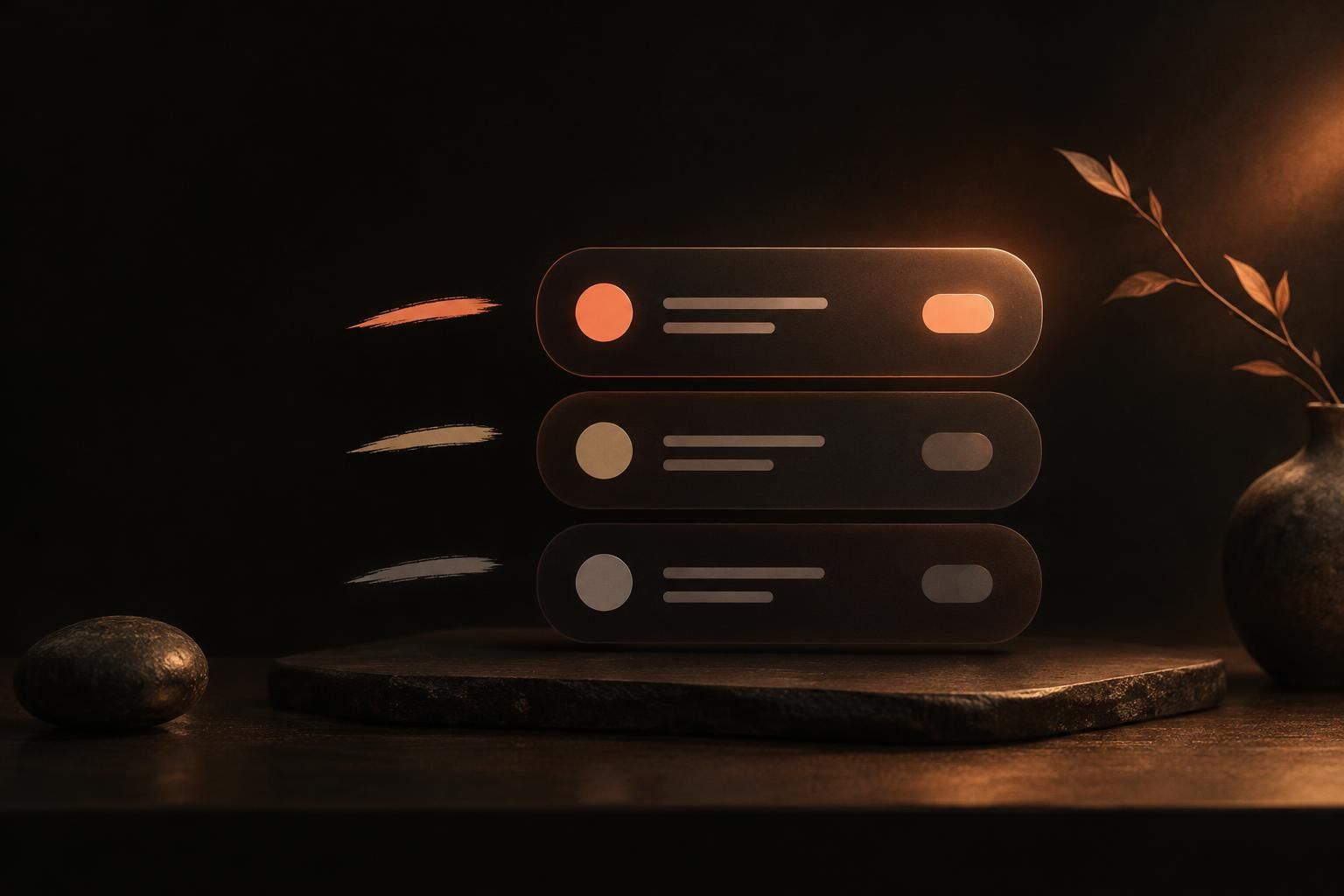
Tier 1: Apps and sites you do not need access to
Use a full block for services you have consciously left behind, duplicate entertainment apps, or sites that have no meaningful role in your current life. Include both the app and web route. There is no reason to create an override ritual for something you do not intend to use.
Tier 2: Apps that are useful but disruptive in certain contexts
Use scheduled or contextual restrictions for useful tools that become disruptive at predictable times. Examples include social apps during work, shopping sites during a no-spend period, or entertainment at bedtime. Keep a direct route for genuine needs, such as calling a person or using a required work tool.
Tier 3: Apps that need a deliberate access rule instead of a total block
Choose a pause, opening delay, limited session, or opening-count rule for apps you still want to use intentionally. This tier suits a news feed you check for a specific purpose or a social app you use to respond to friends. The boundary is: decide first, then enter.
Add the browser versions and indirect routes your list would otherwise miss
A rule fails quietly when it blocks only the most obvious path. Check Safari, any other browser you use, saved bookmarks, search results, email links, and notification deep links. If you routinely move to a laptop after blocking your phone, that device belongs in the plan too.
Freedom is designed to synchronize blocking sessions across devices, including iPhone, iPad, Mac, Windows, Android, and Chromebook. Its US iOS listing gives Premium as a 7-day trial followed by $39.99/year. Use a cross-device tool when switching screens is your established escape route. For the iPhone-specific tradeoffs, see this Freedom app review and alternatives.
Choose enforcement that matches each item on the list
Match the mechanism to the tier. A firm block fits Tier 1. Schedules, app-launch limits, or strict modes fit Tier 2. Delays and short intentional sessions fit Tier 3. Do not use the harshest setting just because it exists. Use the setting that makes the unwanted action inconvenient enough to reconsider.
ScreenZen says it is free and donation-supported, available on iOS, macOS, Windows, and Android. Its site documents app and website blocking, daily limits, scheduled blocks, limited unlocks, mindful pauses, and a lock mode. It is a sensible choice for people who want to tune the friction step by step. Read the practical ScreenZen comparison before choosing a setup.
Apple Screen Time provides activity reporting, family controls, and app limits. Whether a person can bypass or extend a limit depends on the setup, software version, and passcode or parental-control configuration. If that prompt has become automatic for you, choose a screen time alternative with a different kind of interruption.
Decide what should happen when you try to override the block
An override is not necessarily a failure. Emergencies, travel, and a sudden work need are real. Decide in advance what an override should require: waiting, a reason, a physical action, a set session, or no override during a protected window. The right answer is the smallest amount of friction that breaks your reflex without trapping you.
Foqos supports manual, timer, QR-code, and NFC activation, and says it is free and open source with no subscription or in-app purchases. Pick a physical trigger such as an NFC tag at your desk when you want the beginning of focus to be an observable act, rather than another setting you dismiss.
Use scheduling, location, and device rules without blocking your real life
Schedule protection around recurring commitments: a morning writing block, class hours, dinner, or the hour before sleep. Use location or Wi-Fi rules only when they match a stable pattern, such as arriving at an office or connecting to home Wi-Fi. Test them on an ordinary day before relying on them.
On iOS, AppBlock says its free tier includes up to two schedules, usage limits of up to 30 minutes a day, Quick Block sessions of up to four hours, and Strict Mode of up to 12 hours. Choose this type of rule system when context, rather than a single daily limit, is the main problem. Our guide to AppBlock alternatives compares other boundary styles.
Test your custom block list like you would test a loophole
After setting the rules, try to bypass them on purpose. Open the app from search. Use the browser version. Follow a notification. Tap an old bookmark. Switch Wi-Fi. Try at the boundary of a schedule. Then fix only the route that actually defeats the goal.
Review the list weekly and change the smallest failing rule
Once a week, ask three questions: Which rule did I override repeatedly? Which item created unnecessary friction? Which route did I miss? Adjust one rule at a time. A list that changes completely every week teaches you little about what actually works.
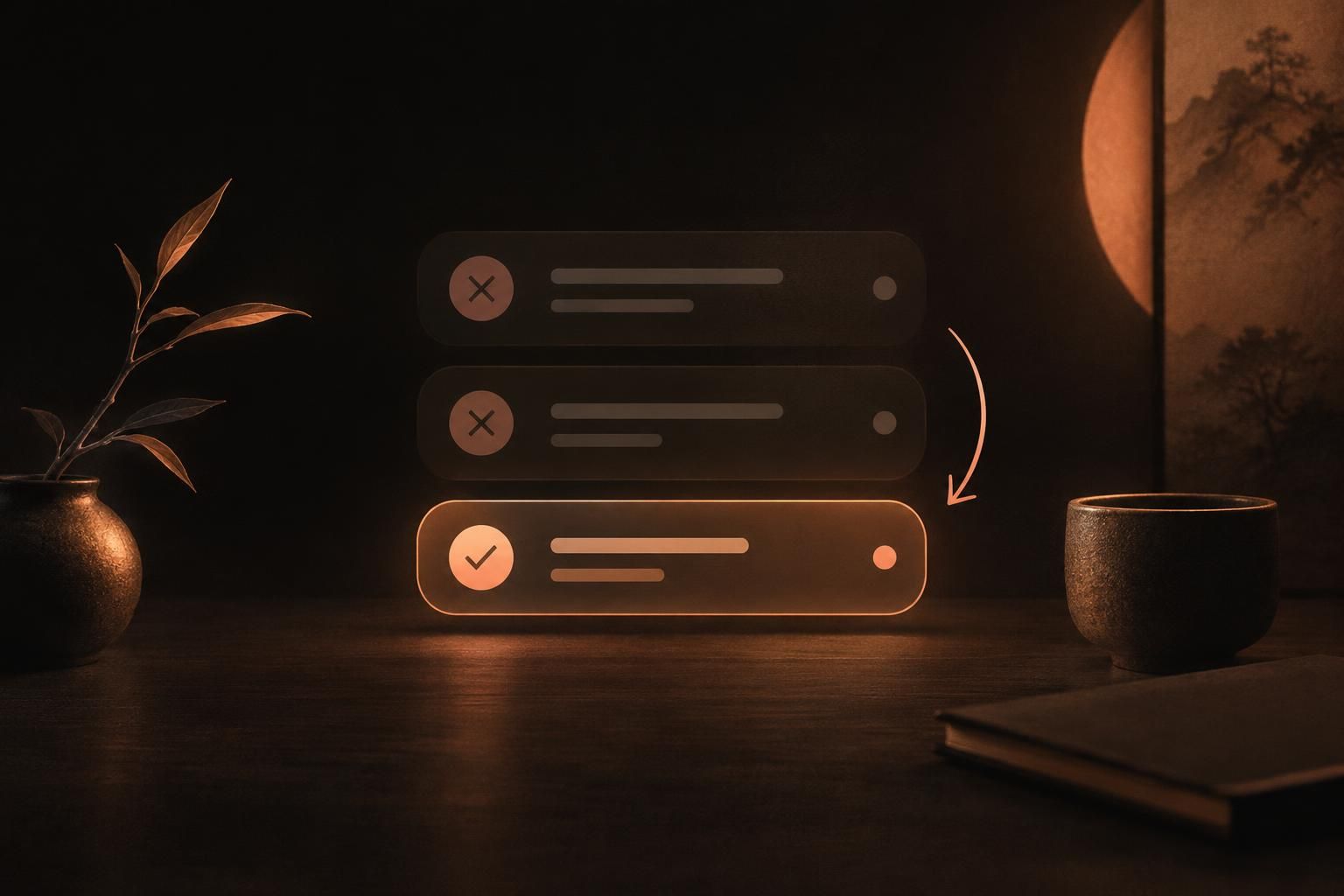
Keep useful evidence simple: number of blocked openings, overrides, and the situations around them. The point is not to build a perfect score. It is to identify whether the boundary is too weak, too broad, or aimed at the wrong trigger.
When a custom block list should not be your only support
A block list is a tool, not a complete response to loneliness, anxiety, burnout, insomnia, or an unsafe online situation. If scrolling is consistently disrupting sleep, work, relationships, or your ability to cope, add human support. Talk with someone you trust or a qualified professional, and reduce the burden on the list to solve everything alone.
Make the list a boundary you can live with
The best custom block list is narrow, understandable, and tested against your real habits. Begin with one problem and a few high-impact routes. Keep essentials accessible. Then make the rule firm enough that opening a distracting app becomes a choice again, not a reflex.
For iPhone users who want deliberate access rather than a conventional countdown, Mado is an attention management app that places a pause before selected apps open. You choose to close the app or use one fixed 15-minute session from a daily cap. Its selectable rhythms set daily session caps, and Deep Focus blocks run from 15 minutes to 4 hours. That makes it a calm fit for Tier 3 apps that you want to use with intention, alongside stronger blocks for the parts of your list that need them.
Related posts
- Read about blocking distractions without blocking your whole life for a broader approach to workable boundaries.
- Compare options in the best iOS app blocker guide if you are choosing a tool for the first time.
- Find a better-fit limit style in alternatives to Screen Time.