App blockers and alternatives
How to block websites on iPhone without creating easy workarounds

To block websites on iPhone effectively, start with the kind of boundary you actually need. A child’s device needs a protected setup that they cannot edit. For your own phone, a website restriction works best alongside an intentional plan for the apps and habits that pull you back online.
Step 1: Decide what you need to block, and who the restriction is for
First, name the problem precisely. You may want to block a handful of distracting domains during work, filter adult content for a child, limit access to nearly all websites, or interrupt a pattern of opening social apps without thinking. These are different jobs, and they call for different settings.
For a child, the goal is usually protection. The person using the phone should not hold the passcode or have a simple way to revise the rules. For your own device, the goal is often friction: enough interruption to let a reflexive tap become a considered choice. A website block is useful, but it is not always the whole answer if the same content is available in several apps.
- Use a blocklist when there are specific sites you want unavailable.
- Use an allowlist when a child should access only a small, known set of sites.
- Use app boundaries as well when the pull comes from feeds, short videos, or social media apps rather than a single website.
If app access is part of the issue, read this guide to app boundaries on iPhone. It helps separate a temporary focus boundary from a stronger family-device restriction.

Step 2: Turn on Screen Time and create a passcode that the blocked user cannot change
Screen Time is the built-in starting point for blocking websites on iPhone. It includes App & Website Activity, App Limits, Downtime schedules, communication restrictions, and content restrictions. Apple also says Screen Time settings and reports can synchronize across iPhone, iPad, and Mac using the same Apple Account when Share Across Devices is enabled.
Open Screen Time in Settings, turn it on if needed, then set a separate Screen Time passcode and keep it private from the child.
This is the part that determines whether the setup is a boundary or merely a reminder. Apple notes that a self-configured App Limit can be ignored or extended. A separate Screen Time passcode makes settings changes meaningfully less casual, especially where the device is set up for a child or family member.
Step 3: Use Web Content settings to block specific websites in Safari
Go to Settings > Screen Time > Content & Privacy Restrictions > App Store, Media, Web, & Games > Web Content > Limit Adult Websites. This mode is useful when you want broad filtering plus a short list of websites that should always be blocked. Under Never Allow, add each site carefully, including the address people actually use to reach it.
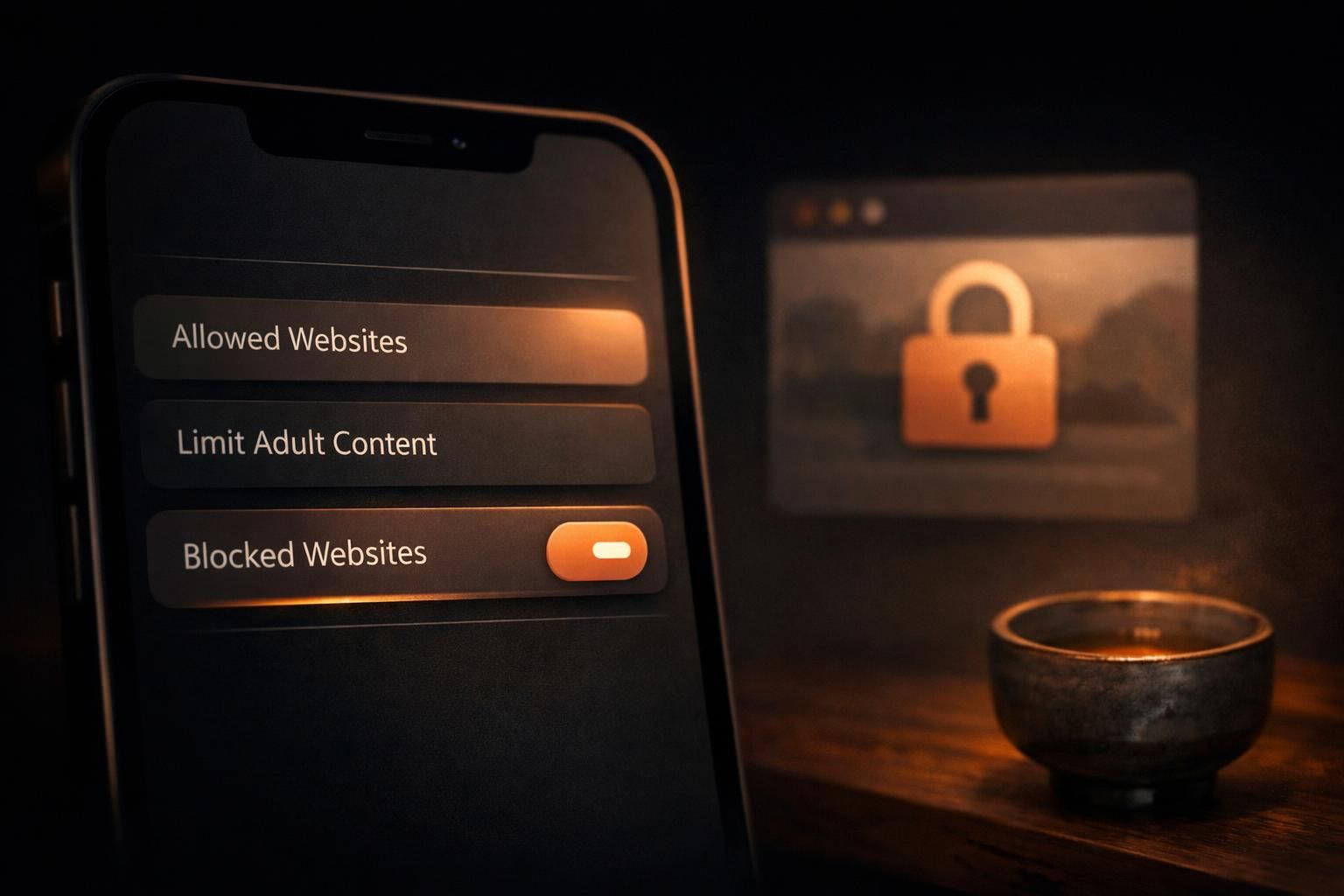
Use this for a focused list, not as a catalog of every possible distraction. Start with the sites that repeatedly break your attention or create a safety concern. Then test each address in Safari while the restriction is active. A useful block is specific enough to protect the moment you care about and simple enough to maintain.
For a personal setup, keep the list connected to a real routine. If news sites derail the first hour of work, block them for that period rather than treating all browsing as a failure. If a particular social site leads to long, unplanned sessions, block that domain and also inspect whether its app is still the easier route.
Step 4: Use “Approved Websites Only” when a child needs an allowlist, not a blocklist
Choose Approved Websites Only when only selected sites should be available.
Build the approved list around genuine needs: school resources, trusted family sites, age-appropriate entertainment, and any services required for activities. Keep it short at first. Every addition is an intentional decision, which is exactly what makes an allowlist easier to understand and supervise than an endlessly growing blocklist.
- Select Approved Websites Only in the Web Content controls.
- Review the sites already allowed and remove any that do not fit the child’s needs.
- Add the specific sites the child needs, then try them together.
- Revisit the list as school, maturity, and family rules change.
An allowlist does involve more upkeep. That is a worthwhile trade when predictability matters more than broad access. Explain the rule in plain language as well. A child who understands which sites are available and why has a clearer boundary than one who simply sees a blocked page.
Step 5: Add age-appropriate safeguards beyond a website list
A website list is one layer, not a complete plan. Use Screen Time’s communication and content restrictions alongside web controls, then review which apps, browsers, and accounts are available on the phone. The aim is not to monitor every moment. It is to make the device match the child’s age, needs, and the family’s stated rules.
Use Downtime and App Limits where certain times or app categories need structure. Apple’s Screen Time tools can apply across devices signed in to the same Apple Account when Share Across Devices is enabled, so check the wider device setup before assuming a rule affects only one screen.
For an older child or teenager, pair restrictions with a conversation about what happens when a useful site is blocked by mistake, how to ask for an exception, and what privacy looks like in the family. Clear repair paths reduce secrecy without removing the boundary.
Step 6: Close the routes that make a website block easy to bypass
After blocking a website in Safari, look for parallel routes. The same content may be available in a dedicated app, another browser, a search result, a shared link, or a different device. This is not a reason to chase perfect control. It is a reason to protect the routes that matter most for the behavior you are trying to change.
For a child, review installed browsers and whether new apps can be added or settings can be changed without the Screen Time passcode. For yourself, remove convenience rather than relying on willpower alone: take distracting apps off the Home Screen, turn off their notifications where appropriate, and decide which device is allowed during focused work.
If you want a stricter personal system, this guide to app boundaries on iPhone explains the tradeoff between a simple nudge and a harder-to-change boundary. No self-control tool is useful if it ignores the paths you use most often.
People who need matching rules on several kinds of devices may prefer a dedicated service. Freedom uses Screen Time controls for apps and a VPN or profile for websites on iOS, while synchronizing blocklists and sessions across supported devices.
ScreenZen is another route for personal friction: its core app is free, with optional $5, $10, $20, and $40 tips rather than a subscription tier. For an offline cue, Foqos is free and open source with no subscription or in-app purchases, and supports NFC tags and QR codes.
For a closer look at that approach alongside other focus tools, see this Freedom app comparison.
Step 7: Pair website blocking with an app boundary when the real habit is doomscrolling
If you block websites on iPhone but still lose time to the same feed in an app, treat that as useful information. The problem is not the domain alone. It is the automatic opening pattern. Add an app boundary that creates a pause before the feed appears, especially during the parts of the day when you want to protect attention.
Mado is a screen time alternative for this personal use case. It shows a pause screen before selected apps open, then lets you close the app or begin a 15-minute session. Daily session caps can be set through selectable rhythms. This makes it a calm app blocker for iPhone when you want to reduce phone usage without framing every use as a mistake.
Use Mado for your own doomscrolling pattern, not as a replacement for child web filtering. Its Deep Focus blocks run from 15 minutes to 4 hours, with an optional lock that stops a focus session ending early. Scheduled or always-on protection can also support a regular work block, study period, or evening boundary. It is an attention management app built around deliberate access rather than permanent deletion.
If you are comparing approaches, this guide to choosing an app blocker for iPhone can help you decide whether you need a social media blocker, a deep focus timer, or a fuller digital wellbeing iOS routine.
Create a pause before the apps that pull you in
Use fixed 15-minute sessions and protected focus blocks to make app use a deliberate choice.
Step 8: Test the setup during the moment you normally try to get around it
Do not stop once the settings are saved. Test the block at the time and in the place where the habit normally happens: late at night, during homework, after a difficult email, or while waiting in line. Open the blocked address in Safari. Try the familiar alternate route. Check the app that usually leads you there.

Then adjust one thing at a time. If a child needs a legitimate school site, add it deliberately. If you keep finding the same distraction through an app, add a pause or schedule around that app. If an automatic opening is part of the pattern, learn how to stop apps from opening automatically on iPhone before treating the problem as a website issue.
A restriction that survives an ordinary difficult moment is more valuable than an elaborate setup that works only in theory. Review it occasionally, especially after a new app, browser, device, or family routine changes the way the phone is used.
Frequently asked questions about blocking websites on iPhone
Can I block the internet on my child's iPhone?
For tightly restricted web access, Approved Websites Only is the clearest approach when a child should use only a small set of known sites. Protect the configuration with a Screen Time passcode the child does not know.
Can I permanently block a website on my phone?
A Screen Time block remains active while the restriction and its passcode protection remain in place. It is a maintained boundary, not an irreversible change to the phone.
How do I block websites for my child?
Use a Screen Time passcode that the child does not know, then choose a Web Content setting that matches the needed level of access. Test it using the child’s normal browser and apps.
How do I block adult websites on iPhone for as long as the restriction is enabled?
Screen Time’s Web Content controls can limit adult websites while the restriction remains enabled and protected by a Screen Time passcode. The restriction is not irreversible because Screen Time passcodes and the settings they protect can be changed or removed.
Can I block the internet on my child's iPhone?
Can I permanently block a website on my phone?
How do I block websites for my child?
How do I block adult websites on iPhone for as long as the restriction is enabled?


