App blockers and alternatives
Blocking distractions without trying to block your whole life

Blocking distractions works best when it protects a specific moment: the first hour of work, a study session, dinner, or sleep. The goal is not a perfectly empty life. It is to make the next intentional action easier than the automatic one.
Blocking distractions is not the same as deleting every distraction
A useful boundary separates deliberate use from reflexive use. Messaging a friend, checking a map, or watching something you chose are not failures of attention. The problem is the repeated open that happens before you have decided what you want. A phone can stay useful while becoming less available for aimless scrolling.
Start by naming the protected activity and its duration. “No social feeds while I write from 9 to 10” is clearer than “use my phone less.” A clear boundary also gives you a fair way to judge whether an app blocker for iPhone is working.

Start with the distraction loop you are actually trying to interrupt
Most distractions have a small loop: a cue, an automatic action, and a quick reward. The cue may be boredom between tasks, an uncomfortable email, a notification, or simply seeing an app icon. The action is opening the app. The reward is novelty, relief, or the feeling of having something to do.
For three days, notice the first moment in the loop rather than counting every minute. Write down: what was I about to do, what did I feel, and which app did I open? This makes the pattern concrete. Use this guide to break the phone-checking loop if the opening itself has become automatic.
- Task avoidance: block feeds during the first small step of difficult work.
- Transition scrolling: create a short offline ritual between meetings, classes, or commutes.
- Nighttime checking: keep the phone out of reach and schedule protection before bed.
- Notification checking: reduce alerts before adding stricter restrictions.
Remove the cues before you rely on an app blocker
A blocker is stronger when it is not fighting a loud environment. Turn off nonessential notifications, remove social apps from the first home screen, and stop using the same browser profile for focused work and casual browsing. Put the next needed tool, such as Notes, a document, or a task list, where the distracting icon used to be.
This is not about hiding from temptation forever. It is about making the default path quieter. A practical focus mode app setup begins with fewer invitations to switch tasks, then adds protection for the moments that still break down.
Choose the right kind of boundary for each distraction
Not every distraction deserves the same response. Use a complete block for an app that reliably derails a deadline. Use a scheduled block for predictable work or sleep hours. Use a short allowance when you want social media to remain part of the day but not fill its empty spaces. Use a physical start cue if beginning focus is the hard part.

| App | Best for | Platforms | Pricing |
|---|---|---|---|
| Apple Screen Time | Built-in reporting and limits | Apple devices | Included with Apple operating systems |
| Mado | Finite scrolling allowances on iPhone | iPhone | Subscription |
| ScreenZen | Free cross-platform blocking | iOS, macOS, Windows, Android | Free |
| Freedom | Sessions across a device fleet | iPhone, desktop, Android and more | Free tier and Premium |
| Foqos | Physical focus-start ritual | iPhone | Free download |
ScreenZen says it is completely free, donation-supported, and available on iOS, macOS, Windows and Android. It is a sensible choice if the same rules need to travel between phone and computer without a subscription.
For a wider shortlist, read this guide to choosing an app blocker for iPhone. The best app is the one whose boundary matches your actual bypass habit.
Use Apple’s built-in controls as the baseline, but test the override path
Apple Screen Time is a useful zero-install starting point. It reports activity and can apply schedules and allowances to apps and categories. Apple says cross-device settings and reports require iOS 27, iPadOS 27, macOS 27, watchOS 27 or visionOS 27 or later on all of your Apple devices.
Before trusting any limit, try to override it at the exact moment you usually would. If changing a setting takes less effort than returning to work, the setup is reporting a habit rather than interrupting it. This comparison of Screen Time alternatives for scrolling can help you choose a different kind of boundary.
Add friction that matches how you bypass a block
If you extend limits without thinking, choose a tool that asks for a new action before access. If you disable rules in settings, use a lock or ask someone else to hold the passcode. If you simply move to a browser or a second device, extend the boundary there too. Friction should meet the escape route, not merely decorate the original block.
AppBlock is built for detailed rules, including schedules, usage limits, launch-count limits, and conditions such as time, location, or Wi-Fi. Its iOS free tier allows up to 2 schedules, a scheduled daily usage limit up to 30 minutes, and Strict Mode up to 12 hours; Premium removes those limits.
If uninstalling is your familiar exit, read the practical limits of app blockers that cannot be deleted before treating any self-imposed restriction as permanent. For an app you truly do not want available, use a more direct plan for permanently blocking an iPhone app.
Use Mado when you need a calm, finite scrolling allowance instead of another negotiable limit
Mado is for the person who does not want to quit every distracting app, but is tired of opening one without a reason. It places a pause before selected apps. You then close the app or spend one fixed 15-minute session from a daily cap. Once the cap is used, access remains paused until the next day.
Choose Mado if your usual pattern is “just a few minutes” becoming a long scroll. Its Shizuku rhythm allows exactly 3 daily sessions of 15 minutes each, Nagare allows 2, and Izumi allows 1. That is a different commitment from repeatedly deciding whether to extend an elapsed-time limit.
For work or study, its Deep Focus blocks run from 15 minutes to 4 hours, and an optional lock prevents ending the block early. Deep Focus does not consume the daily scrolling-session budget. Use it as a deep focus timer when you need a clean stretch, and use the pause screen for ordinary moments of habit.
Create a calmer pause before scrolling
Use a fixed daily session budget for distracting apps and protect focused time when you need it.
Close the escape routes that make your boundary meaningless
After setting a boundary, test the ordinary workarounds: mobile browser versions, a tablet, a spare social account, notification links, and reinstalling an app. Do not aim for an elaborate fortress. Close the one or two routes you actually use, then leave the rest alone.
DoomScroll takes another route by offering per-app daily limits from 15 seconds to 30 minutes. Its US Pro price is $4.99/month or $34.99/year, and its optional physical unlock activities can add a real-world pause before a bypass.
Protect focused work across every device when your distraction follows you
A phone boundary fails if the same feed is one click away on a laptop. For writing, studying, or project work, decide which devices belong inside the focus session and block the same destination on each one. Keep only the tools required for the task open.
Freedom is a strong fit for this problem because it synchronizes sessions across signed-in devices. Its free tier permits sessions of up to 2 hours; Premium unlocks longer sessions, recurring sessions, Start Later sessions, and Locked Mode. Read the full Freedom app review and alternatives if cross-device sessions are your priority.
If reporting is what you need alongside browser extensions, see who benefits from StayFree on iPhone. If you want a free cross-platform blocker, this practical ScreenZen comparison explains its trade-offs.
Build a focus routine around the block, not just a stronger block
A block creates space. Your routine decides what enters it. Before starting, write the next visible action: outline three points, read two pages, solve the first problem, or reply to one email. Set a duration, put the phone away, and decide in advance what a short break looks like.
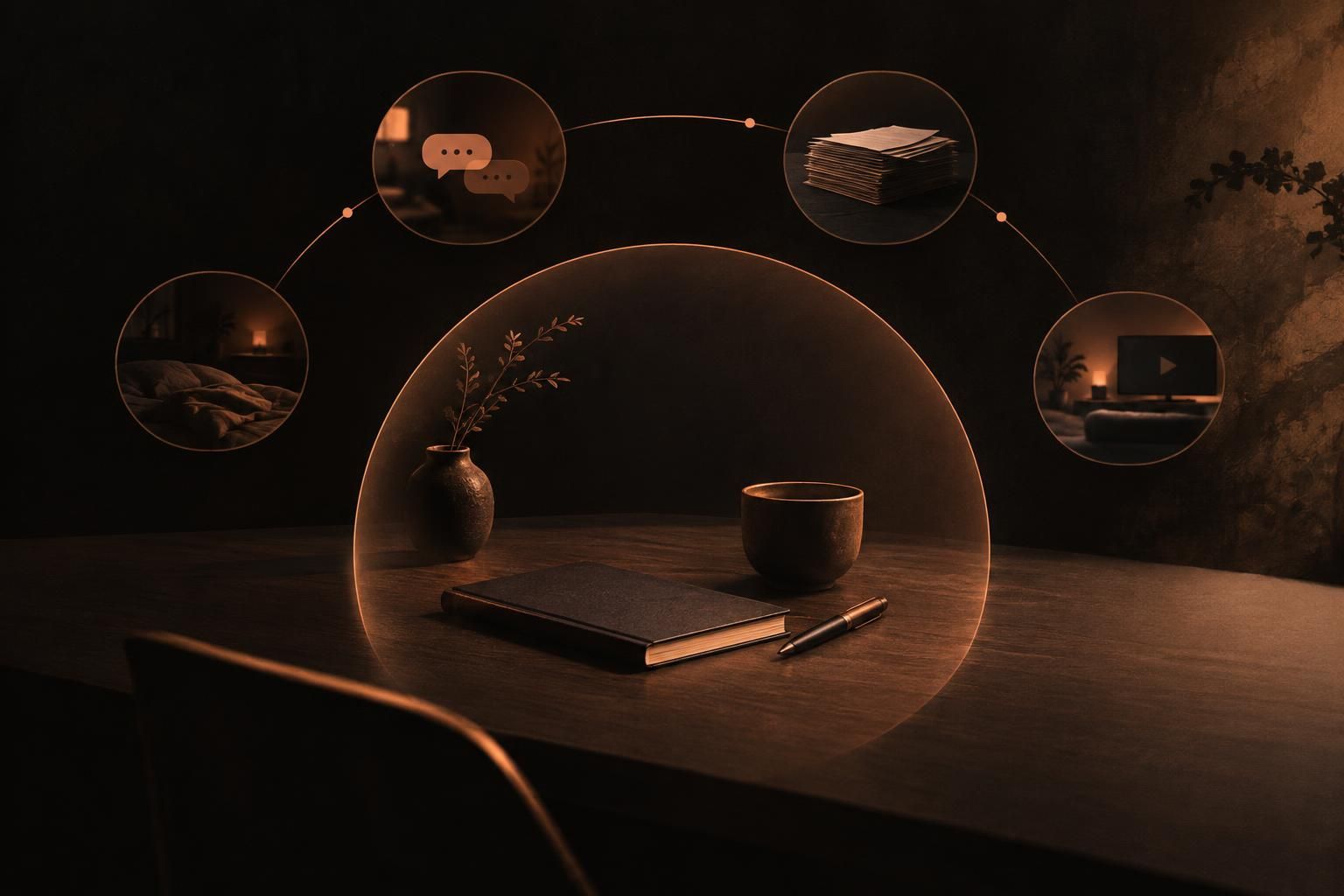
Physical cues are useful when tapping “start” is too easy to ignore. Foqos starts or controls a blocking session through an NFC tag or QR code. Its current App Store listing requires iOS 17.6 or later and lists a $1.99 ‘Tip for developer’ in-app purchase. For other approaches, compare these deep focus timer options for iPhone.
Review your setup after one week and adjust the smallest failing piece
At the end of a week, ask three questions: Which boundary held? When did I bypass it? What was I trying not to do? Change one small part first. Move an app, shorten a window, add a browser block, or choose a different session rhythm. A setup you can live with is more valuable than a severe one you abandon on day two.
If you are comparing structured blockers, this Opal comparison with Apple Screen Time and Mado is useful for deciding whether you need broad routines and reporting or a simpler interruption at app launch.