Focus Apps
How to reduce phone distraction at work without relying on willpower

Phone distraction at work usually begins before you make a conscious decision. A glance during a hard task becomes a quick check, then an unplanned scroll. The useful response is not harsher self-criticism. It is a workday setup that makes the next right choice easier.
Why phone distraction at work is harder than simply “using more willpower”
For many people, relying only on willpower around frequent phone cues can be difficult. Phones also serve practical work and communication purposes, so a total-ban rule may be hard to sustain. The better aim is selective friction.
Keep the functions that support your job available. Put a pause in front of the apps that pull you away from it. If the checking loop feels automatic, start by understanding why you keep checking your phone. Naming the cue, such as uncertainty, boredom, waiting, or task resistance, gives you something concrete to redesign.
Identify the work moments when your phone costs the most attention
Do not begin with a vague promise to use your phone less. For three workdays, notice the moments immediately before an unnecessary pickup. You are looking for patterns, not evidence against yourself.
- Starting a difficult email, report, or spreadsheet.
- The first minute after a meeting ends.
- Waiting for a reply, a build, a download, or a decision.
- Eating lunch at your desk or taking a break without a plan.
- Switching between tasks that require different kinds of thinking.
Choose one high-cost moment first. For example, if you always open a social app after sending a difficult message, make the next action physical and specific: stand up, refill water, then write the first line of the next task. A custom block list should reflect these real triggers, not a generic list of apps you feel you ought to avoid.
Build an urgent-contact rule so you can mute everything else
Many people leave every notification on because they are worried about missing something important. Replace that broad anxiety with a narrow, explicit rule. Decide who can reach you urgently during focused work, which channel they should use, and what counts as urgent.
A simple rule might be: calls from my partner, school, manager, and one project colleague may break through. Everyone else should use the team channel, and I will check it at the end of each focus block. Tell the relevant people once. You do not need to be instantly reachable by every app to be reliable.
Remove the visual and physical cue before your focus block begins
A visible phone invites a visible decision. Before work that needs sustained thought, place it in a bag, drawer, or across the room. Turn it face down if it must remain nearby. The goal is not punishment. It is to stop every glance at the screen from becoming a fresh invitation.
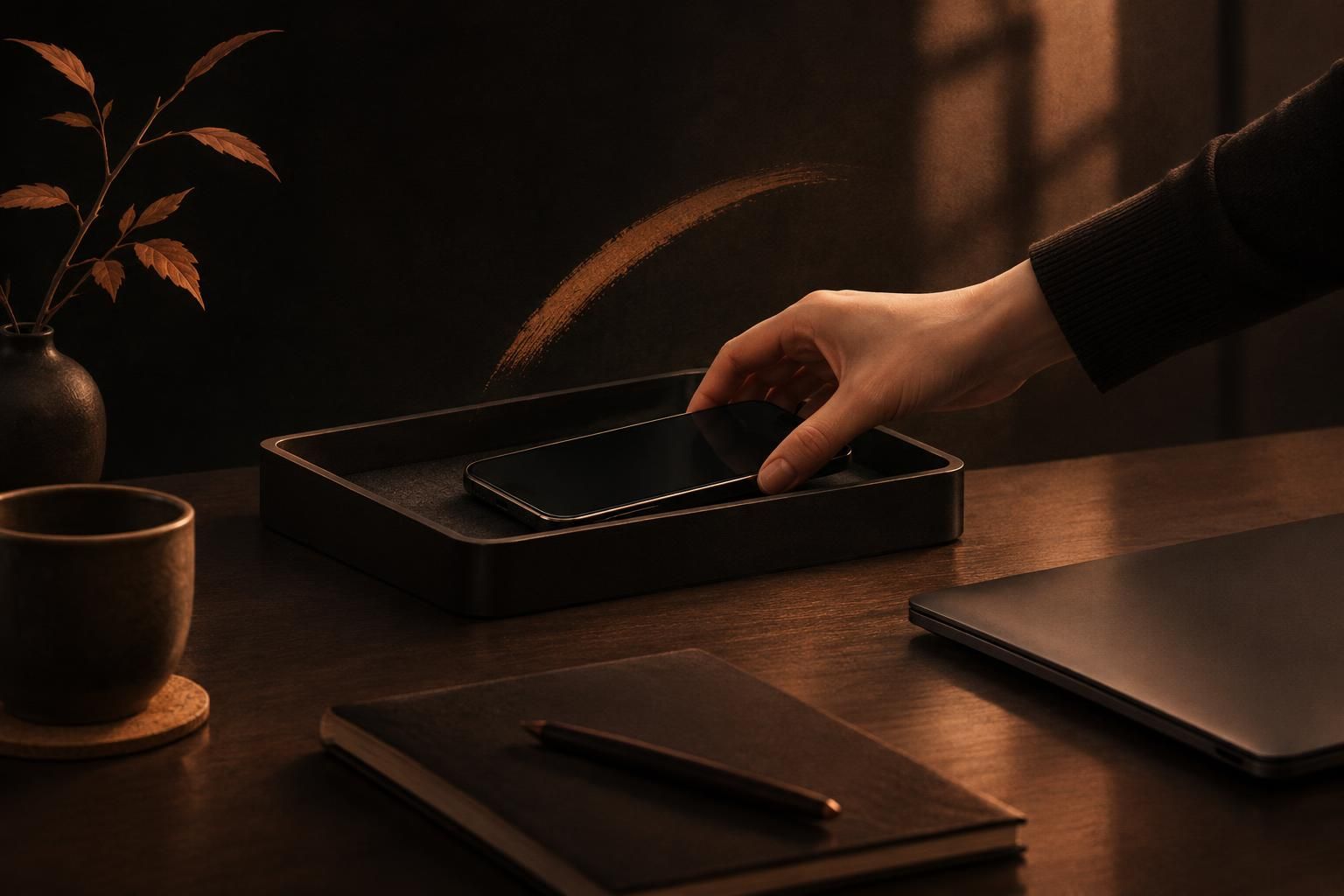
Make the home screen quieter too. Remove distracting apps from the first page, turn off attention-grabbing badges where practical, and keep work essentials easy to find. These are small forms of environmental design. Make your phone boring without making it useless by reducing prompts while preserving the tools you actually need.
Make notification settings support your workday instead of interrupting it
Sort notifications into three groups: urgent people, work-critical alerts, and everything else. Let the first group through. Keep the second group useful but restrained. Silence the third group during work hours. Promotional notifications, social reactions, news prompts, and shopping alerts rarely need immediate attention.
Use a work focus setting as a container for this arrangement, then test it during an ordinary day. Apple’s built-in Screen Time supports App Limits and Downtime across iPhone, iPad, Mac, and Apple Watch, so it is a reasonable no-install baseline for usage reports and broad limits. If you repeatedly override a limit, treat that as useful information: the boundary needs more friction, not more guilt.
Create planned phone-check windows rather than checking between every task
Checking between tasks feels harmless because each check is brief. It also prevents your attention from fully settling into the next task. Put checks on the calendar instead: perhaps after a 50-minute work block, at lunch, and before the final hour of the day. The exact spacing matters less than keeping it predictable.
Use the window deliberately. Reply to personal messages, check the feed if that is what you chose, then put the phone away before beginning again. This is not an attempt to block your whole life. It is a way of giving personal phone time a place so it does not claim every gap in the day.
Choose a boundary that fits the way you bypass phone limits
The right screen time app depends on your usual escape route. If you need a short pause before opening an app, choose friction. If you keep changing time limits, choose a stricter rule. If distracting sites on a work browser are the issue, use a website boundary rather than expecting a phone setting to solve a desktop problem.
- Pick Screen Time for built-in reporting, App Limits, and Downtime.
- Pick ScreenZen if adjustable delays before opening apps suit you. Its strict rules can also trigger from a time range, number of opens, or screen-time amount.
- Pick AppBlock if you need app and website blocks shaped by time, location, or Wi-Fi. Its current US App Store listing shows Premium Yearly at $29.99 and Premium Monthly at $4.99.
- Pick Foqos if a physical boundary works best for you, such as keeping an NFC tag or QR code away from your desk. It is free and open source, with no subscription or required in-app purchase.
For a broader comparison, see these screen time apps for iPhone. If browser distraction is the recurring leak, set up a separate plan to block websites on iPhone.
Use Mado when work breaks turn into unplanned social-app sessions
Mado suits the person whose problem is not wanting total lockout, but losing a break to an automatic social-app session. It is an iPhone screen time app that places a calm pause before selected apps open. You then choose to close the app or spend one fixed 15-minute session from a daily cap.
That structure is useful when “just five minutes” tends to dissolve a work transition. The strictest rhythm allows one 15-minute session per day, while the gentlest allows three. For concentrated work, Mado also offers Deep Focus blocks from 15 minutes to 4 hours, with an optional lock that stops a block ending early.
Use it as an attention management app for the apps you open from habit, not for every practical tool on your phone. Its insights, streaks, milestones, and growing garden keep the emphasis on noticing progress rather than judging a bad day.
Create a calmer pause before social apps
Try a fixed session boundary for the apps that turn a short work break into an unplanned scroll.
Design a phone-free deep-work routine that still works on a busy day
A deep-work routine should be short enough to begin on a crowded day. Start with one 25- or 50-minute block. Before it begins, write the single outcome you want, put the phone out of sight, set your urgent-contact rule, and close unrelated browser tabs. When the block ends, take a real break before deciding what comes next.
If a focus mode app helps you hold that line, use it as a support rather than a performance test. This guide to focus mode apps for blocking distractions can help you match the tool to the kind of interruption you face.
Handle workplace rules, safety requirements, and jobs that require a phone
Some jobs require a phone for authentication, dispatch, customer contact, safety alerts, photography, navigation, or on-call coverage. Do not create a personal system that conflicts with those duties. Read your workplace policy, ask your manager what responsiveness is expected, and clarify whether a work device and personal device should be handled differently.

For phone-required work, separate essential from optional use. Keep the work apps, approved contacts, and required alerts accessible. Put social media and other personal distractions behind a pause during the shift. On a safety-sensitive site, follow the site rule rather than improvising with an app blocker.
Review the experiment after one week and fix the weakest point
At the end of seven days, ask three questions: Which moment still pulls me into my phone? Which boundary did I bypass? What made the successful blocks easier? Change one thing for the next week. Move the phone farther away, tighten one notification group, shorten a check window, or add friction to one app.
Do not turn one difficult day into a verdict on your discipline. A durable setup is adjusted, not imposed. If cross-device measurement is central to your work, this StayFree app review and iPhone alternatives explains one analytics-focused option and its trade-offs.
FAQ about phone distraction at work
What does phone addiction look like?
The useful sign is not simply owning or enjoying a phone. Look for repeated use that conflicts with your intentions: opening apps automatically, losing more time than planned, interrupting work despite consequences, or feeling unable to leave the phone alone during a task. Start with the specific pattern you want to change rather than applying a label to yourself.
How many hours is considered excessive phone use?
There is no single hour count that answers this for every job or person. A phone-heavy role, caregiving responsibility, accessibility need, or commute changes the number. Focus on whether personal phone use interrupts work you intended to do, displaces rest, or repeatedly exceeds the boundary you set.
Is 7 hours of screen time a day bad?
Seven hours alone does not explain what that time contains. Work, navigation, reading, calls, creative tasks, and passive scrolling are different activities. Separate required screen time from unplanned use, then look at whether the latter is harming focus, sleep, relationships, or the commitments that matter to you.
Can my boss make me use my phone for work?
Workplace requirements depend on your role, employer policy, contract, and local law. Ask what tasks require a phone, whether a work device is available, what costs or data rules apply, and what response times are expected. If you have a concern, raise it with your manager or the appropriate workplace contact.
The goal is not a perfectly silent phone. It is a workday in which your attention belongs to the task in front of you more often than it belongs to the next prompt on a screen.